Showing posts with label windows11. Show all posts

Wednesday, November 1, 2023

Windows 11 23H2 - How to enable/access Copilot in Europe


So, you've already using the new Windows 11 23H2 Feature Update and you notice that on of the most awaited features is nowhere to be found?
If your living in Europe, you can give many thanks to Digital Markets Act (DMA) for blocking it in EU.

Well, but this is technology so...there's always workarounds...here's one while we wait for DMA to unblock Copilot:

  1. Create a shortcut (Right-click > New > Shortcut)
  2. For the item location write down "microsoft-edge://?ux=copilot&tcp=1&source=taskbar" and click Next
  3. Now type your preferred name for the shortcut, Copilot for example and click Finish
Now just try it out. Copilot will open exactly like other guys have outside EU.

If you want to have a nice Windows Copilot icon, just download this one:

Windows 11 23H2 - How to force upgrade with Enterprise SKU

 
If you're using a Windows 11 Enterprise SKU, you may not automatically receive 23H2 update right now. Even if you enable the "Get the latest updates as soon as they're available" and then check for updates, the Feature Update may not be available today.

This was the easiest and fastest way to upgrade my machine from 22H2 to 23H2 and for obvious reasons it's fine for an isolated upgrade, and not for an enterprise-wide rollout. For that kind of scenario you should use Windows Update for Business; VLSC; etc.

So, just follow these steps:

  1. Download Windows 11 Installation Assistant from here
  2. Double-click, next, next next
  3. Wait....
  4. Done!
Don't be afraid because this will upgrade your Windows version and not wipe out your disk.
After the upgrade, open Windows update and install the latest quality update, which for the moment I'm writing this article is this one: 
2023-10 Cumulative Update Preview for Windows 11 Version 23H2 for x64-based Systems (KB5031455)

Sunday, February 12, 2023

Windows 11 - How to bypass Internet connection install requirement


Starting with version 22H2 of Windows 11, Microsoft requires an Internet connection to install the OS. But...does it really?

Here's a quick step guide to bypass this requirement:

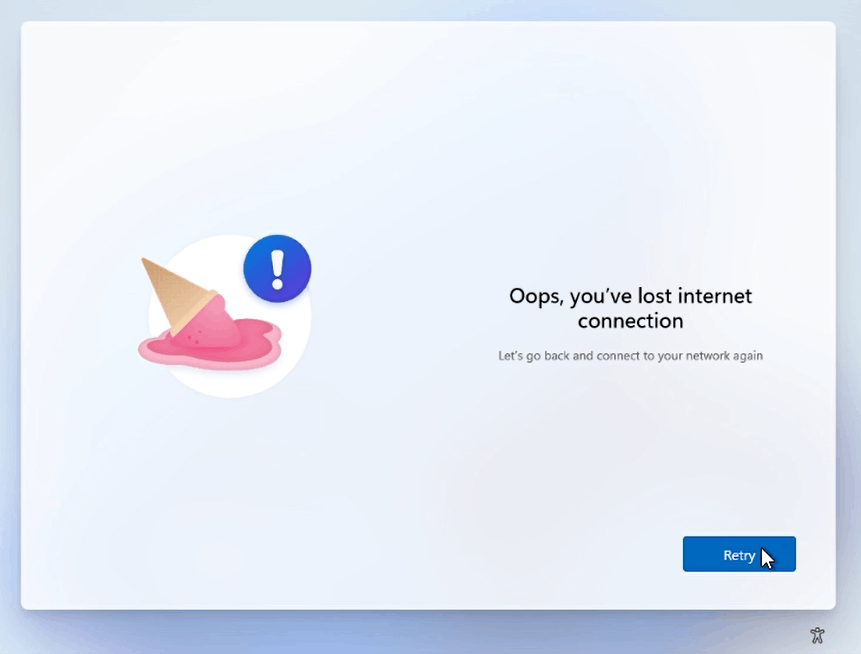
  1. Through the OOBE experience, you'll get to a screen that will say:
    "Oops, you've lost internet connection" or "Let's connect you to a network"

  2. Press "Shift+F10" to open a command-prompt

  3. In the cmd run the following command:
    OOBE\BYPASSNRO

  4. Your computer will restart and the OOBE will start again, but...now we have a new option called "I don't have Internet"


  5. And...it's done!


Friday, June 25, 2021

Microsoft Windows 11 – Full Event

After a lot of hype, finally Microsoft had it’s Windows June Event presenting the new Windows 11.

Review here the full event:
Microsoft Windows Event - 24th June