Sunday, February 12, 2023

Windows 11 - How to bypass Internet connection install requirement


Starting with version 22H2 of Windows 11, Microsoft requires an Internet connection to install the OS. But...does it really?

Here's a quick step guide to bypass this requirement:

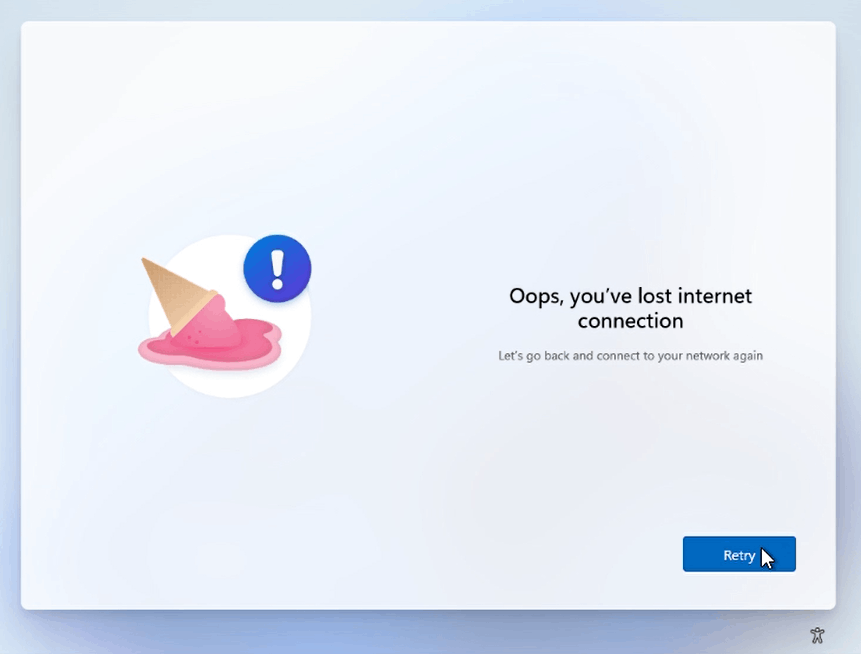
  1. Through the OOBE experience, you'll get to a screen that will say:
    "Oops, you've lost internet connection" or "Let's connect you to a network"

  2. Press "Shift+F10" to open a command-prompt

  3. In the cmd run the following command:
    OOBE\BYPASSNRO

  4. Your computer will restart and the OOBE will start again, but...now we have a new option called "I don't have Internet"


  5. And...it's done!


Tuesday, January 10, 2023

ControlUp - How to reset Real-time console to factory default


Here's how to quickly reset to factory default, the machine you're running ControlUp Real-time Console:

  1. Login in the machine you run the console

  2. Start > Run > %appdata%

  3. Delete the ControlUp folder

  4. Open Registry (regedit.exe)

  5. Delete or rename the following registry key:
    HKEY_CURRENT_USER\Software\Smart-X\ControlUp

Now, just launch the console again and...there you go!

Friday, January 6, 2023

WDAC - Event IDs + Advanced Hunting Quick Reference


Here's just a quick reference for Windows Defender Application Guard Event IDs and the correspondent string (ActionType) for Defender Advanced Hunting:

ActionType

EventID

Description

AppControlCodeIntegrityDriverRevoked

3023

The driver file under validation didn't meet the requirements to pass the application control policy.

AppControlCodeIntegrityImageRevoked

3036

The signed file under validation is signed by a code signing certificate that has been revoked by Microsoft or the certificate issuing authority.

AppControlCodeIntegrityPolicyAudited

3076

This event is the main Windows Defender Application Control block event for audit mode policies. It indicates the file would have been blocked if the WDAC policy was enforced.

AppControlCodeIntegrityPolicyBlocked

3077

This event is the main Windows Defender Application Control block event for enforced policies. It indicates the file didn't pass your WDAC policy and was blocked.

AppControlExecutableAudited

8003

Applied only when the Audit only enforcement mode is enabled. Specifies the .exe or .dll file would be blocked if the Enforce rules enforcement mode were enabled.

AppControlExecutableBlocked

8004

The .exe or .dll file can't run.

AppControlPackagedAppAudited

8021

Applied only when the Audit only enforcement mode is enabled. Specifies the packaged app would be blocked if the Enforce rules enforcement mode were enabled.

AppControlPackagedAppBlocked

8022

The packaged app was blocked by the policy.

AppControlScriptAudited

8006

Applied only when the Audit only enforcement mode is enabled. Specifies the script or .msi file would be blocked if the Enforce rules enforcement mode were enabled.

AppControlScriptBlocked

8007

Access to file name restricted by administrator. Applied when the Enforce rules enforcement mode is set directly or indirectly through GPO inheritance. The script or .msi file can't run.

AppControlCIScriptAudited

8028

Audit script/MSI file generated by Windows LockDown Policy (WLDP) being called by the script hosts themselves.

AppControlCIScriptBlocked

8029

Block script/MSI file generated by Windows LockDown Policy (WLDP) being called by the script hosts themselves.

AppControlCodeIntegrityOriginAllowed

3090

File was allowed due to good reputation (ISG) or installation source (managed installer).

AppControlCodeIntegrityOriginAudited

3091

Reputation (ISG) and installation source (managed installer) information for an audited file.

AppControlCodeIntegrityOriginBlocked

3092

Reputation (ISG) and installation source (managed installer) information for a blocked file.

AppControlCodeIntegrityPolicyLoaded

3099

Indicates a policy has been successfully loaded.

AppControlCodeIntegritySigningInformation

3089

Signing information event correlated with either a 3076 or 3077 event. One 3089 event is generated for each signature of a file.

AppControlPolicyApplied

8001

Indicates the AppLocker policy was successfully applied to the computer.

AppLocker - How to clear policies from a machine (or multiple)


If you need to clear AppLocker polices here's how to do it:

  1. If your using some kind of method to deploy AppLocker policies to your machines, first of all disable it.

  2. The, create an .XML (ex.: clear.xml) file with the following rules:

    <AppLockerPolicy Version="1">
      <RuleCollection Type="Exe" EnforcementMode="NotConfigured" />
      <RuleCollection Type="Msi" EnforcementMode="NotConfigured" />
      <RuleCollection Type="Script" EnforcementMode="NotConfigured" />
      <RuleCollection Type="Dll" EnforcementMode="NotConfigured" />
      <RuleCollection Type="Appx" EnforcementMode="NotConfigured" />
      <RuleCollection Type="ManagedInstaller" EnforcementMode="NotConfigured" />
    </AppLockerPolicy>


  3. Apply the new AppLocker policy opening an elevated PowerShell:
    Import-Module AppLocker
    Set-AppLockerPolicy -XMLPolicy .\clear.xml

  4. Now, we need to run the following commands to stop the AppLocker services and the effects of the previous AppLocker policy:

    appidtel.exe stop [-mionly]
    sc.exe config appid start=demand
    sc.exe config appidsvc start=demand
    sc.exe config applockerfltr start=demand
    sc stop applockerfltr
    sc stop appidsvc
    sc stop appid
And...your done!

Tuesday, November 15, 2022

Microsoft Defender AV: Update Signatures from PowerShell


Here's how to update your Microsoft Defender Antivirus signatures using PowerShell:
  • Open a PowerShell (or Terminal) as Administrator
  • Run the following command: Update-MpSignature -UpdateSource MicrosoftUpdateServer

Now just wait for the process to finish and you're done! :)

Microsoft Defender AV: Update Signatures from Command-Line


If you need to update your Microsoft Windows Defender Antivirus signatures, here's how:

  • Open a CMD as Administrator
  • Run the following command: "%ProgramFiles%\Windows Defender\MpCmdRun.exe" -SignatureUpdate

Now just wait the process to finish and you're done!

Microsoft Defender AV: Client Logs


For everyone implementing Microsoft Windows Defender Antivirus, here's a quick note where to find the client logs and how to use them:

  • C:\ProgramData\Microsoft\Windows Defender\Support
    • MPLog-######-#####.log
    • MPDetection-######-#####.log
    • MPCacheStats.log (Defender Only)

You should use the MPLog to:

  • Search Threat Name to locate a record of malware detection.
  • Search Scan Source to locate a record of a scheduled scan running or record a running scan that is on demand.
  • Search Expensive file to locate an instance of an expensive file detection during a scan.
  • Seach on update process