Monday, June 26, 2023
Drivers and Firmware updates coming to Intune soon!
Tuesday, November 15, 2022
Microsoft Defender AV: Update Signatures from PowerShell
- Open a PowerShell (or Terminal) as Administrator
- Run the following command: Update-MpSignature -UpdateSource MicrosoftUpdateServer
Sunday, July 4, 2021
Windows 11–Lifecycle FAQ

Windows 11 changes the Windows lifecycle. Instead of 2 annual releases, it will have just one, with 36 months support for enterprises.
To learn all about the new Windows lifecycle, here’s the Microsoft FAQ:
Microsoft Windows Lifecycle FAQ
Tuesday, April 23, 2019
RSS Feeds–Keep up-to-date with the latest product updates
If you’re like me and still loves using rss feeds to get the latest information, Microsoft has a nice service to let you choose which rss feeds you receive.
This makes it easy to get only what you want without the need to choose from a wide list of rss links.
Here, you’ll select the product, create the RSS feed link and add it to your favorite RSS reader.
Take a look at:
Microsoft Support Content Updates RSS generator
Sunday, May 13, 2018
Deployment Tips – Extracting All Microsoft Office Updates in a Folder
Because you may need to create a new source installation of your Microsoft Office and gather all the necessary security updates, here’s a quick tip extract all *.exe Office updates to the Updates sources folder.
This is particularly useful because most of the time you’ll download the updates on *.exe format and has you may know, the automated install will look for *.msp files inside the Updates folder instead.
So, here are the necessary steps to do it:
For this example we’ll use the folder D:\Temp\10\Office where you’ll put all your downloaded *.exe files and you should create also D:\Temp\10\Office\Updates where the files will be extracted.
- Download all your *.exe files and move them to D:\Temp\10\Office
- Open a command-line as Administrator
- On the command-line, navigate to D:\Temp\10\Office
- Know just execute the following command:
for %g in (D:\Temp\10\Office\*.exe) do %g /extract:D:\Temp\10\Office\Updates /quiet - All *.msp files will be extracted to D:\Temp\10\Office\Updates and now you just need to copy them to your “OfficeSource\updates”.
And you’re done!
Wednesday, November 1, 2017
Deploy Tips&Tricks – Removing Superseded Components After Base Image Creation
![]()
If you’re creating a base or golden image with a lot of updates, it’s good to cleanup superseded components before saving your new wim file.
Here’s a simple way using DISM command line tool:
- Just before finish your image (on a task sequence for example)
- Run the following command: DISM /Online /Cleanup-Image /StartComponentCleanup /ResetBase
This will cleanup the superseded components.
Just be aware that after running the DISM command all existing service packs or updates cannot be uninstalled.
For a complete list of available commands and options just type this on an elevated prompt:
DISM /Online /Cleanup-Image /?
Sunday, October 15, 2017
Tips&Tricks – Adobe Software – New Releases RSS Feeds

You’re a SysAdmin and need a way to always be up-to-date with new releases of Adobe Reader and Adobe Flash Player?
Just subscribe to this 2 RSS feeds:
Tuesday, April 18, 2017
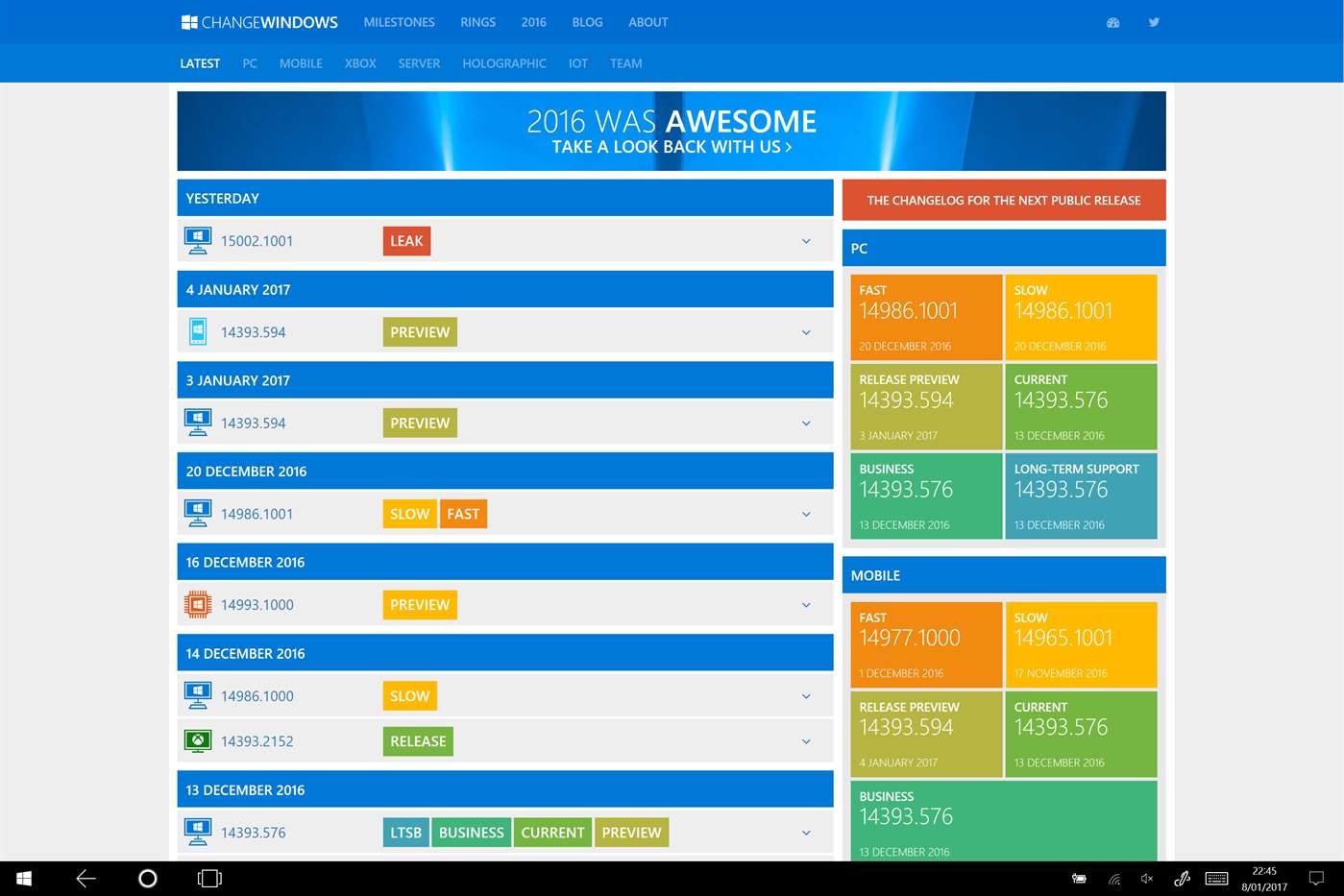
ChangeWindows – Keeping Track of Windows Releases
Since Windows 10 and the Windows Insider program, a lot of releases have been brought to Windows users and a variaty of devices like PCs, Mobiles, HoloLens and even IoT.
With all flavours available flavours for fixes and updates, from Fast Ring to Long Term Support Ring, it’s not an easy task to keep track of everything available, what new features get available or which things get fixed.
Thinking on that,, Studio 384 done a terrific job with ChangeWindows app.
With this app you’ll be able to keep track of everything launched, for each device type, what was released, what’s coming next, etc.
Install the app right way here:
Studio 384 - ChangeWindows App
Friday, January 6, 2017
Windows Tips – Get Yourself Up-to-Date With RSS Feeds
Although most of management software, helps you quickly get information about hotfixes and software updates, it’s always important to be informed about more than just the operating systems and the most used software.
One good way to keep updated about all Microsoft products it’s using rss feeds.
In the below website you can get a list of all Microsoft products and a direct link that you can add to your favorite rss reader.
Tuesday, September 6, 2016
MDT 2013 Update 2 - Bug When Changing Application Command Line?

So today I'll talk about something odd that happen just yesterday.
I've published a new application in MDT and added it to my task sequence (TS).
After that I've noticed that I had to change the msi file name so just went to DeploymentShare\Applications, changed the file name and also changed the install command-line in MDT to match the new file name.
Basically the changes was from a filename with spaces to a filename with "underscores".
After testing the TS, I've received a return code error (1639 - invalid command line argument).
Double-checked everything and after looking at ZTIApplications.log file I've found out something strange.
It seems the TS for some reason didn't assume my install command-line changes. And it was running the command without underscores and with spaces:
So...for my surprise, and to solve this issue, I had to go to my TS again, select the application and the browse for published applications and select that one (Cirrato Client) again.
This solve this issue that I don't remember to see in previous MDT versions.
Hope this helps people having the same same strange behavior! ;)
Wednesday, December 3, 2014
VMware - Understanding Versions and Builds
VMware as a strange build and versions naming and sometimes it's difficult to understand for example if your vSphere or vCenter it's on update 1 or update 2 or something else.
Thinking on that and until a better solution, VMware has an up-to-date website/kb the correlates the builds and versions.
Take a look here:
Correlating VMware products build numbers to update levels (1014508)