
Ever needed to get your device’s serial number quickly?
Here’s how:
- Open a elevated command-prompt
- Type the following command-line:
wmic bios get SerialNumber - And there you go!

Ever needed to get your device’s serial number quickly?
Here’s how:

Need to know if certain app is ready for Windows 10?
And…after that, need to know if that app is compatible with a specific Windows 10 build/version?
Quickly search for that info with Microsoft help with this website:
Microsoft - Ready for Windows

Although not used regularly, this tip is a good one for those running Windows 10 Insider Program builds.
This allows you to keep track of your current Windows 10 build and minor build versions with less effort.
So, to see you Windows 10 version on your desktop follow this steps:
And you’re done.
Just remember that this is a per-user value so, if you login with another user you need to repeat the above steps.
Need to know which version of Powershell you’re using?
As easy as:
Here’s a nice article, from Microsoft’s PFE Brandon Wilson, about how to troubleshoot group policy processing, mainly to understand if it’s slowing down the boot and logon process on a Windows machine.
Read the full article here:
TechNet Blogs - Ask PFE Platforms - Is Group Policy Slowing Me Down?
Here’s a quick tip to get a list of device driver version installed:
After executing the command, you’lll get something like this, where the third column displays the driver version:

Just a quick link if you need to deploy Micro Focus (formerly Novell) Client.
It’s a nice and detailed website from Micro Focus on how to silently install, generate response files, etc.
Thumbs up to Micro Focus, would love other big companies do the same.
Novell Client - Understanding the Client Install Manager (nciman.exe)
Did you ever needed a specific version of Microsoft Visual C++ Redistributable to run an application?
I had this issue with VMware Horizon Client 4.7.0 that needed some Visual C++ specific versions to be installed. If not, the installer would install them for me but…rebooted the machine without any kind of warning.
So, thanks to a Jags Blog, we can get the direct links to download a bunch of versions of Visual C++ Redistributable!
Here’s the link:
Microsoft Technet Blogs - Jags Blog - Where can I download Visual C++ Redistributables?

Although nowadays you could (err…should) configure event viewer (or centralized logging) for your Windows Defender Firewall, here’s a tip for something I’ve noticed when changed the default Windows Defender Firewall location.
When applying a GPO to do this, you must keep in mind that MpsSvc service account is responsible to write down the Windows Firewall log, so, if you change the default location (%windir%\System32\LogFiles\Firewall) you need to give it the right NTFS permissions.
So basically what you need to do:
And…you’re done!

Here’s a quick tip to completely disable Adobe Reader DC automatic updates.
On this examples, we’ll use a registry configuration for Windows x64 machines:
First things first. There are 3 ways to disable automatic updates. You can choose one of them but…I use all 2 just because we never know if Adobe changes they’re mind about it and one of the ways stops working on next Adobe Reader DC release:
bUpdater |
Disables the Updater and removes associated user interface items |
Check | Specifies the default time interval in days to check for updates. |
Mode |
Specifies the Updater’s update mode (manual | automatic) |
Now, for the registry keys (that you can apply using Group Policy Preferences for example) here’s what you need:
bUpdater
Path
HKEY_LOCAL_MACHINE\SOFTWARE\WOW6432Node\Policies\Adobe\Acrobat Reader\DC\FeatureLockDown\
Value Name
bUpdater
Value Type and Data
REG_DWORD = 0
Mode
Path
HKEY_LOCAL_MACHINE\SOFTWARE\WOW6432Node\Adobe\Adobe ARM\Legacy\Reader\{AC76BA86-7AD7-1033-7B44-AC0F074E4100}
Value Name
Mode
Value Type and Data
REG_DWORD = 0

And here’s a nice tip that at least for me was a nice surprise. I think it only works since Windows 10 but I’ve not tested it yet.
There’s a lot of articles explaining how to tweak Windows so that when you right-click somewhere you can open command-prompt (CMD) or anything else.
For me this is not ideal because I need to use a lot of different computers and it’s more practical to know tips and tricks that work on any computer that is not mine.
So, imagine you’re on a folder using Windows Explorer and you need to open powershell or cmd there.
It’s as easy as write that up in the Explorer’s address bar.
And yes…is as simples as that! ;)

Here’s a nice tip for those that for some reason need to configure Windows Firewall (or Windows Defender Firewall on Windows 10).
The recommended way to do this should be using a group policy but because you may have a non-domain joined machine on your network, here’s how to do it.


If for any reason you need to reset firewall rules to default values just type:
netsh advfirewall reset
It’s been a while since Adobe stopped to distributing directly the msi files to install Adobe Acrobat Reader DC, but there’s a really easy way to extract it from the exe file.
Here’s a command-line example for the latest version 18.009.20044:
(“C:\Temp\Adobe” should be replace for your preferred location)
And you’re done.

Sometimes you need to do a quick change to your IE11 Enterprise Mode site list and you also need to quickly test this change.
To force the update of websites list just do the following:

If you’re creating a base or golden image with a lot of updates, it’s good to cleanup superseded components before saving your new wim file.
Here’s a simple way using DISM command line tool:
This will cleanup the superseded components.
Just be aware that after running the DISM command all existing service packs or updates cannot be uninstalled.
For a complete list of available commands and options just type this on an elevated prompt:
DISM /Online /Cleanup-Image /?

You’re a SysAdmin and need a way to always be up-to-date with new releases of Adobe Reader and Adobe Flash Player?
Just subscribe to this 2 RSS feeds:
Using security filtering on GPOs it’s a nice way to apply a GPO to specific groups or users.
But you may find yourself a little bit lost if you need to know every user or group you have configured.
Since Group Policy Management doesn’t allow you to export the users and groups, you’ll need to use a Powershell command to do it.
Here’s how:
Get-GPPermission –Name ‘GPO NAME’ -All | Where Permission –eq GpoApply
And…you’re done!

So…you’re proud ‘cause you have all your emails well organized in Outlook.
Sometimes it happens that with all that organized email structure you find yourself well…lost.
Then you search for other email with same subject, you find a lot of them but still don’t know which folder they’re in.
Here’s a quick tip!
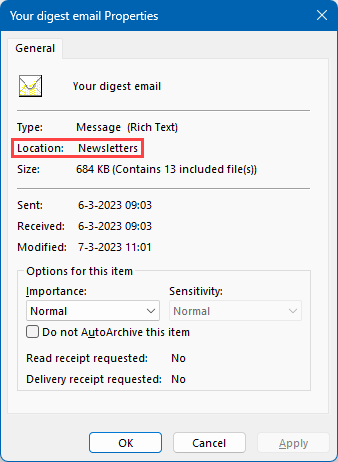
Search the subject, select the email and use the keyboard shortcut “Alt+Enter” to get the folder they’re in!
Hope this saves you some time!
Group Policy Preferences (GPP) are available since Windows 2008 / Windows 7 and they extend the expand the range of configurable setting within Group Policy Objects (GPO).
Although they provice a better targeting through item-level targeting and action modes, theres something not so good when you need to troubleshoot them.
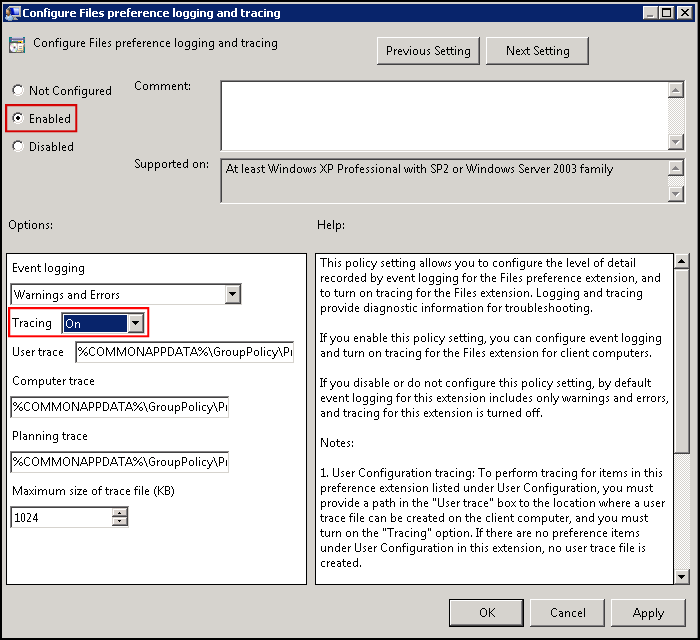
Instead a quick look in the event viewer for example, you’ll need to enable GPP logging through GPO settings.
To do so, use the following steps:
Inside this folder you’ll get everything you can trace.
You can set what to trace (ex.: Warnings and Errors), where to save the debug logs, maximum log size, etc.
So, following the deployment tips series about drivers, here’s a wrap up of all posts:


