Showing posts with label import. Show all posts

Monday, December 11, 2017

Tips & Tricks – Import/Export Windows Firewall Settings Command-Line

Here’s a nice tip for those that for some reason need to configure Windows Firewall (or Windows Defender Firewall on Windows 10).

The recommended way to do this should be using a group policy but because you may have a non-domain joined machine on your network, here’s how to do it.

  1. First of all, configure everything you need in Windows Firewall on a reference machine
  2. Then, open an elevated command-prompt and type the following command:
    netsh advfirewall export “C:\Temp\WindowsFirewallRules.wfw”

    advfirewall01
  3. Now that you have the file, you can import it to any machine using the following command:
    netsh advfirewall import “C:\Temp\WindowsFirewallRules.wfw”

    advfirewall02

If for any reason you need to reset firewall rules to default values just type:
netsh advfirewall reset


Tuesday, July 18, 2017

Win10 Deploy – Forcing Start Menu Layout and Allow Users to Pin Shortcuts

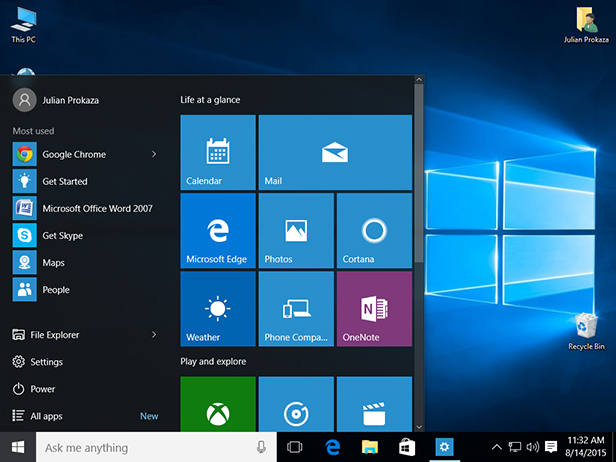
Following the previous article (Win10 Deploy – Customizing Start Menu and Forcing it with GPO) you could create a customized layout, force the layout to be applied but, the users could not pin any shortcuts they need.

If you want users to be able to do that, just follow these steps after exporting the xml file:

  • Edit the xml file exported
  • Located the tag “<DefaultLayoutOverride>
  • Change the tag to the following:
    <DefaultLayoutOverride LayoutCustomizationRestrictionType=”OnlySpecifiedGroups”>
  • Save the xml file

And it’s all done.

Now, you’re Start Menu layout has the pinned shortcuts you want (locked) and users are able to add they’re own shortcuts.

Sunday, July 9, 2017

Win10 Deploy – Customizing Start Menu and Forcing it with GPO


One of the most notable and visible changes on Windows 10 O.S. is the new Start  Menu. A mix of “the old” Start Menu with an highlight on UWP and apps.

Now, for an enterprise it’s usually important to make sure that they’re line-of-business (LoB) applications are always there or even make sure that there’s an harmony on every machine of the enterprise, where everyone have access through Start Menu to the same applications or links.
So, if you want to customize and force a specific Start Menu layout, here’s how.

Customizing and Exporting Layout
First things first. Let’s start by customizing the Start Menu you want to give to all users:
  • Login the reference machine (preferably with a “model user”)
  • Now customize you layout has you like it
  • When finished, open Powershell console and export the Start Menu layout like in this example:
    Export-StartLayout –Path C:\Themes\StartMenu\StartLayout001.xml
Now that you have your new Start Menu layout, you just have to force it using a Group Policy.

Forcing Start Menu Layout

  1. Open GPMC
  2. Edit your GPO
  3. Navigate to Computer Configuration (or User Configuration) | Administrative Templates | Start Menu and Taskbar 
  4. Double-click “Start Layout"
  5. Select “Enabled
  6. Write down the path where you xml file is located
    (in our example would be C:\Themes\StartMenu\StartLayout001.xml)
And you’re done!