Showing posts with label deploy. Show all posts

Thursday, July 27, 2023

New Microsoft Teams Preview - How to Enable


The new Microsoft Teams is coming and you can preview it right now!

Rolling out in September 2023 for new and existing installations of Microsoft 365 Apps for Windows, currently, users can install the new Teams by using the "Try the new Teams" switch in classic Teams or having administrators bulk deploy directly to the computers in theirs organization.

To enable the switch for specific users or groups, follow the instructions here:
Deploy the new Teams client using policies - Microsoft Teams | Microsoft Learn

If you want to bulk deploy in your organization, you should follow this instructions:
Bulk deploy the new Microsoft Teams desktop client - Microsoft Teams | Microsoft Learn

The option to opt-out will be available in early August 2023.

For a complete list of what's new and improved in the new Teams experience, here's the Microsoft Blog announcement:
Introducing the new Microsoft Teams, now in preview - Microsoft Community Hub

Monday, April 29, 2019

Microsoft 365 – Windows Defender Advanced Threat Protection (WDATP) – Implementation Docs

With more and more enterprises embracing digitalization and also the Microsoft Cloud solutions, there’s a nice add-on to Microsoft 365 subscriptions (or if you’re using E5 tier) called Windows Defender Advanced Threat Protection or WDATP.

WDATP is a unified, cloud based platform for, preventative protection, post breach detection, automated investigation and response.

You can read a little bit more about it here:
Microsoft 365 - Windows Defender Advanced Threat Protection – Overview

But this post is about what you need to do to implement it in your organization.

Below are direct links to Microsoft documentation that helps to easily implement and troubleshoot WDATP:

WDATP - Onboard Windows 10 machine

WDATP - Run a detection test on a newly onboarded Windows Defender ATP machine

WDATP - Configure machine proxy and Internet connectivity settings

WDATP - Enable access to Windows Defender ATP service URLs in the proxy server

WDATP - Troubleshoot Windows Defender Advanced Threat Protection onboarding issues

Wednesday, January 16, 2019

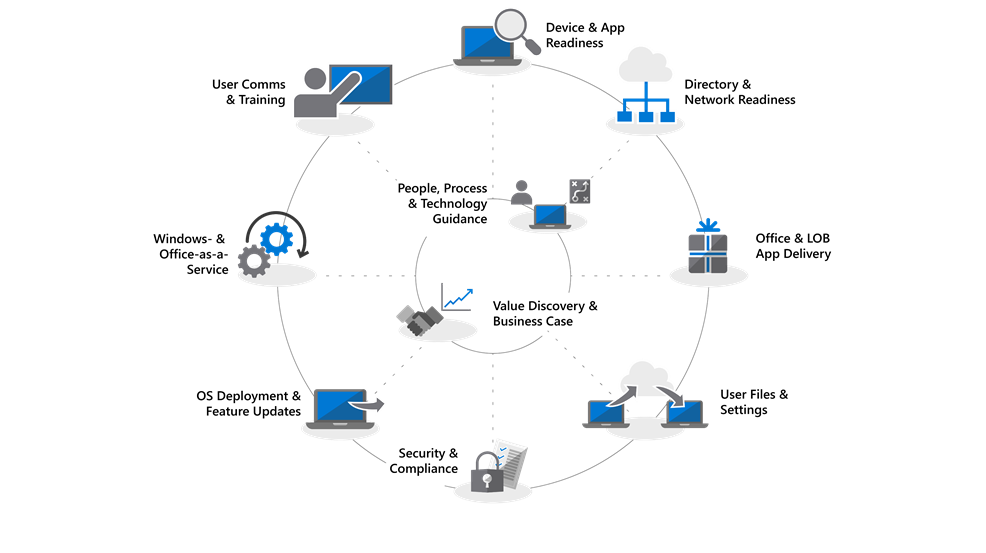
Microsoft Modern Desktop Deployment Center

Preparing to deploy Microsoft Windows 10 and/or Office 365 ProPlus?

This will be the future (well, somehow the present) of Microsoft on the enterprise, specially with large-scale deployment.

So, embrace the modern desktop deployment with Microsoft Desktop Deployment Center.

In this Microsoft’s website you’ll find guidance with videos, planning, step-by-step guides and a lot more.

Find all the info here:
Modern Desktop Deployment Center

Sunday, December 2, 2018

How to Create a Visual Studio Community Offline Install

Following other Microsoft products, Visual Studio Community it’s all about downloading just what you need to use.
Although this is great for end users, not so good if you’re a sysadmin that need to create installation packages.

So, today for Microsoft Visual Studio Community, here’s what you’ll need to do:

  1. First of all download the setup wrapper here:
    https://visualstudio.microsoft.com/vs/express/

  2. And…now comes the tricky part. You can download only what you need to install, and it’s all based in “layouts”. The main command it’s this one:
    vs_Community.exe --lang en-us --layout f:\vs2017c –all


The above command will download ALL the “layouts”, but you may want do download only the necessary files to install for .NET development. So you should take a look at the link below to select just want you want to download/install:
https://docs.microsoft.com/en-us/visualstudio/install/workload-component-id-vs-community?view=vs-2017#net-desktop-development

How to create a package with Wireshark and WinPcap

Untitled

As some of you may know, unfortunately isn’t possible to install Wireshark silently with WinPcap.
Well, at least, isn’t possible to do it, just using the Wireshark package alone, although you can install it if you’re running the “normal” user interface.

If you need to create a package to install Wireshark and WinPcap, follow these steps:

  1. Download the latest version of Wireshark here
  2. Now, you need to download Nmap (zip format) that includes WinPcap
  3. So, now that you have both Wireshark and WinPcap, you just need to create a package with your favorite packaging software to install both.


Just a little more info.

To install Wireshark silently:

  • /S runs the installer or uninstaller silently with default values. The silent installer will not install WinPCap.
  • /desktopicon installation of the desktop icon, =yes - force installation, =no - don’t install, otherwise use default settings. This option can be useful for a silent installer.
  • /quicklaunchicon installation of the quick launch icon, =yes - force installation, =no - don’t install, otherwise use default settings.
  • /D sets the default installation directory ($INSTDIR), overriding InstallDir and InstallDirRegKey. It must be the last parameter used in the command line and must not contain any quotes even if the path contains spaces.
  • /NCRC disables the CRC check. We recommend against using this flag.

To install WinPcap silently:

  • /S runs the installer in silent mode


And…that’s it!

Tuesday, July 18, 2017

Win10 Deploy – Forcing Start Menu Layout and Allow Users to Pin Shortcuts

Following the previous article (Win10 Deploy – Customizing Start Menu and Forcing it with GPO) you could create a customized layout, force the layout to be applied but, the users could not pin any shortcuts they need.

If you want users to be able to do that, just follow these steps after exporting the xml file:

  • Edit the xml file exported
  • Located the tag “<DefaultLayoutOverride>
  • Change the tag to the following:
    <DefaultLayoutOverride LayoutCustomizationRestrictionType=”OnlySpecifiedGroups”>
  • Save the xml file

And it’s all done.

Now, you’re Start Menu layout has the pinned shortcuts you want (locked) and users are able to add they’re own shortcuts.

Sunday, July 9, 2017

Win10 Deploy – Customizing Start Menu and Forcing it with GPO


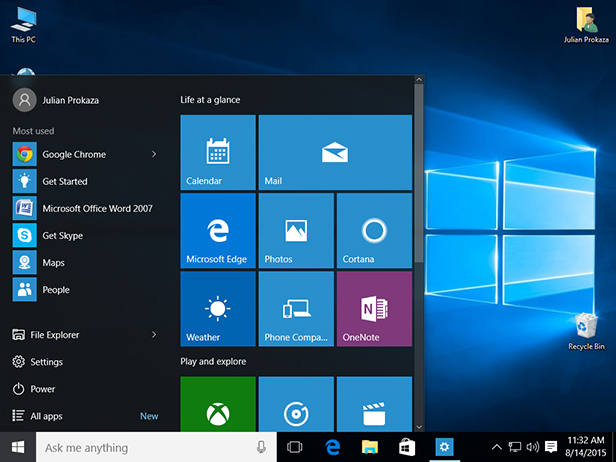
One of the most notable and visible changes on Windows 10 O.S. is the new Start  Menu. A mix of “the old” Start Menu with an highlight on UWP and apps.

Now, for an enterprise it’s usually important to make sure that they’re line-of-business (LoB) applications are always there or even make sure that there’s an harmony on every machine of the enterprise, where everyone have access through Start Menu to the same applications or links.
So, if you want to customize and force a specific Start Menu layout, here’s how.

Customizing and Exporting Layout
First things first. Let’s start by customizing the Start Menu you want to give to all users:
  • Login the reference machine (preferably with a “model user”)
  • Now customize you layout has you like it
  • When finished, open Powershell console and export the Start Menu layout like in this example:
    Export-StartLayout –Path C:\Themes\StartMenu\StartLayout001.xml
Now that you have your new Start Menu layout, you just have to force it using a Group Policy.

Forcing Start Menu Layout

  1. Open GPMC
  2. Edit your GPO
  3. Navigate to Computer Configuration (or User Configuration) | Administrative Templates | Start Menu and Taskbar 
  4. Double-click “Start Layout"
  5. Select “Enabled
  6. Write down the path where you xml file is located
    (in our example would be C:\Themes\StartMenu\StartLayout001.xml)
And you’re done!

Monday, October 27, 2014

MDT - Error Code 193 on Deployment Summary


For some time I was getting a strange return code when deploying a specific image with a specific application.
In this case, I was a warning with the return code 193.

After some search, I've found that it was as simple as changing the install parameters for that application like in this example:

Previous command line:
application.msi /qr /norestart ALLUSERS=2

Correct command line:
msiexec.exe /i application.msi /qr /norestart ALLUSERS=2

Well...and no more warning on the Deployment Summary.
As simples as that!

Thursday, January 2, 2014

Deploy Windows 8 with MDT

Here's a very quick but helpful video about how to install Microsoft Windows 8 with Microsoft Deployment Toolkit 2012 Update 1 (MDT).

In this video there's all you need to understand the basic steps to create a Litetouch installation.