Showing posts with label cloud. Show all posts

Tuesday, December 29, 2020

Outlook Signatures in the Cloud!

Here’s a very nice and useful feature that should be available on the following months!

Your Outlook signatures and stationeries we’ll finally follow your account. This is particularly helpful in scenarios where your users won’t use always the same computer, or in a migration scenario.

Read the full post here:
Office Insider Blog - Store your signatures in the cloud

Monday, April 29, 2019

Microsoft 365 – Windows Defender Advanced Threat Protection (WDATP) – Implementation Docs

With more and more enterprises embracing digitalization and also the Microsoft Cloud solutions, there’s a nice add-on to Microsoft 365 subscriptions (or if you’re using E5 tier) called Windows Defender Advanced Threat Protection or WDATP.

WDATP is a unified, cloud based platform for, preventative protection, post breach detection, automated investigation and response.

You can read a little bit more about it here:
Microsoft 365 - Windows Defender Advanced Threat Protection – Overview

But this post is about what you need to do to implement it in your organization.

Below are direct links to Microsoft documentation that helps to easily implement and troubleshoot WDATP:

WDATP - Onboard Windows 10 machine

WDATP - Run a detection test on a newly onboarded Windows Defender ATP machine

WDATP - Configure machine proxy and Internet connectivity settings

WDATP - Enable access to Windows Defender ATP service URLs in the proxy server

WDATP - Troubleshoot Windows Defender Advanced Threat Protection onboarding issues

Monday, June 4, 2018

Understanding the Intelligent Edge

Nowadays,with everything evolving at the speed of light, there’s a lot of initials, acronyms and concepts to catch up.

One of the most recent ones is the Intelligent Edge.
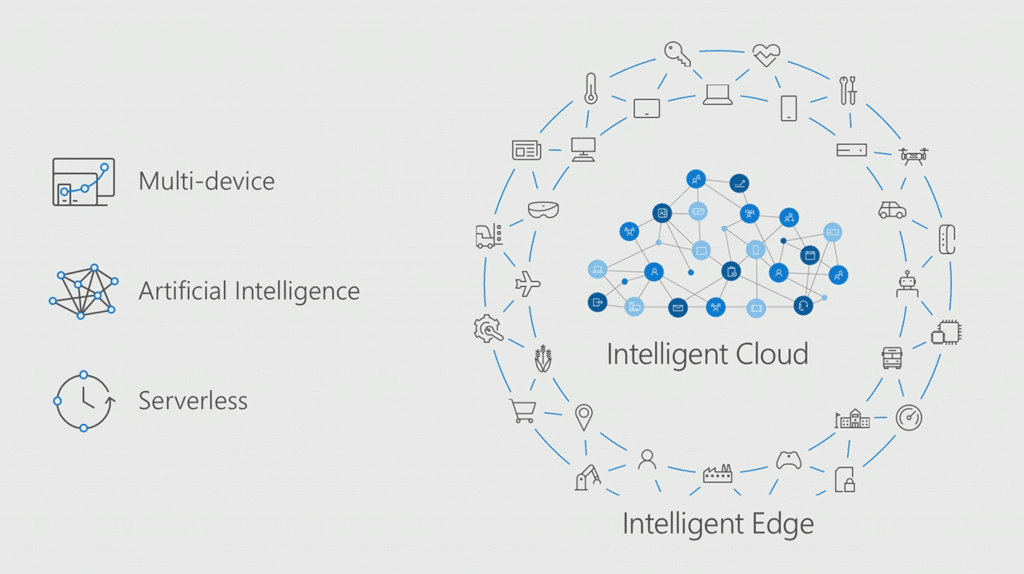
In a very very very resumed and simplified way, Intelligent Edge it’s all about the devices, or IoT devices if you like, that connect to the cloud, and the concept itself it’s to bring “intelligence” to this devices so they don’t need to do everything in the cloud and also the ability to make this devices talk to each other without the need of using the Cloud to do it.

Microsoft just launched recently a video from the series “Explanimators” about this:

Wednesday, January 29, 2014

Microsoft SkyDrive will turn to Microsoft OneDrive


Imposed by lawsuit, Microsoft announced that it's cloud storage service (SkyDrive) will soon been renamed to Microsoft OneDrive, half a year later of the lawsuit from British Sky Broadcasting Group.

Ryan Gavin, a Microsoft VP, stated that although it's not easy do renamed a brand like SkyDrive, this new brand gives even more focus on the excellence of the product.

Microsoft also launched a video about OneDrive:

Thursday, March 21, 2013

Skydrive on Windows PCs


In the last 2 or 3 years, I've been an huge fan of cloud computing and all the benefits that come with it.
I can now change from my laptop,to my desktop or my smartphone and get access to all my information, favorites and specially...my documents.

Microsoft's SkyDrive it's an excellent cloud application that provides access to all the information and it's integrated on the Microsoft Live ecosystem.

This is my main repository (25GB) and my hard drive it's just used to temporary work. This allow me to have a very complete experience of cloud computing and work everywhere since I've a browser.

So, let's focus a little bit on some tips for using Microsoft SkyDrive:

Windows 8 App
Although I'm not a huge fan (for now) of Windows 8 Apps, the SkyDrive App it's a nice one, for some features like photo viewing, quick edit documents, etc.


For example, you can change your Windows 8 lock screen image, with one that you have on your Skydrive.
To do this:

  • Go to PC Settings
  • Personalize
  • Browse
  • On the drop down list, select SkyDrive
  • Choose your image, and it's done
As simple as that.

Redirect Your Desktop to SkyDrive
This makes the experience of cloud computing even better.
Imagine you're working on something on your desktop, or you have a lot of shortcuts there, and you want to access them easily on any computer or laptop.

Then, follow this:
  • Go to your user folder (usually C:\Users\username)
  • Right-click on it and select Properties
  • Select Location tab
  • Move the folder to your SkyDrive
Done.


User the SkyDrive for Windows Application
Although the Windows 8 App it's fine at some level, the SkyDrive for Windows can give you a lot more flexibility since you'll see and access your file more easily from the Windows Explorer menus.


You can download it here: