Showing posts with label windows 10. Show all posts

Tuesday, May 19, 2020

Windows 10 now has a packet sniffer built-in

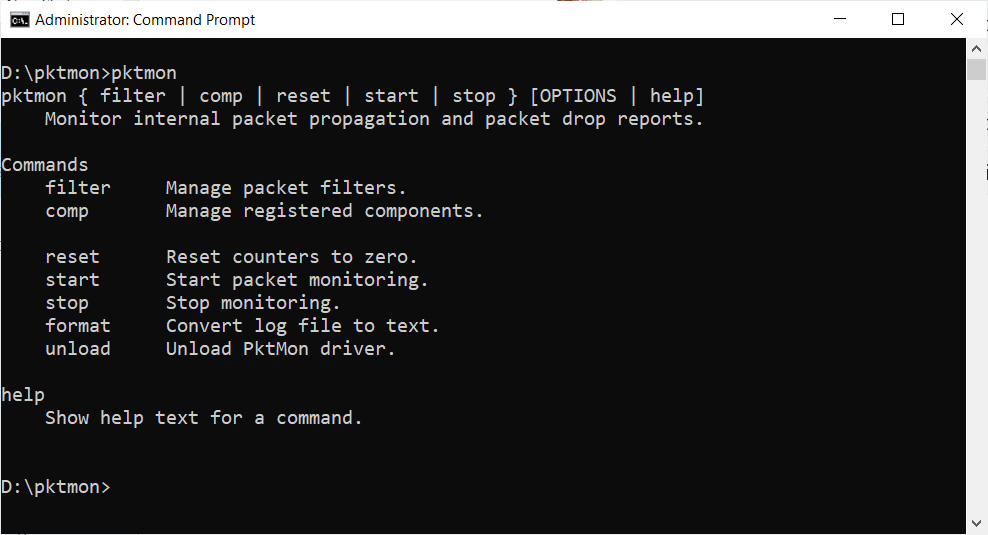
Pktmon Help

Microsoft added a new tool with October 2018 Update that didn’t had any special focus but it’s a really nice one.
A built-in diagnostic and packet monitoring tool called “pktmon”.

To use it just open an elevated command-prompt and type “pktmon” to get details and commands.

Microsoft VLSC gets monthly updates for Windows

Here’s a nice addition if you’re like me and uses Microsoft Volume Licensing Service Center (VLSC) to get you Windows 10 ISOs.

You know have ISOs monthly updated, which avoid the need to update Windows 10 after installing or using an ISO and quality update separately in your MDT environment.

Monday, September 9, 2019

Windows 10–Your Phone App….phone calls! :)


So another really nice feature will be available soon on Your Phone App in Windows 10.
Following the nice to have notifications you’ll be able to do phone calls. And yes…this makes this app even more cool and helpful.
I believe Microsoft is listening to all the feedback they receive and also, I really believe that Windows 10 is now on this mature stage where the most important thing is not to add a bunch of new features but tweak to the best it’s current features.
Here’s a nice video showing of the new Call preview for Your Phone App from the one and only @ZacBowden from Windows Central:


Thursday, July 18, 2019

SetupDiag – Know what went wrong with your Windows 10 upgrade

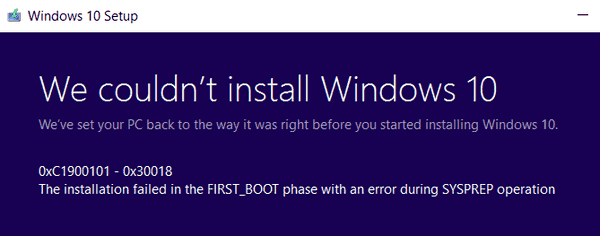
With no whistles and fireworks, Microsoft launch a tiny but very useful tool to analyze what went wrong with your Windows 10 update.

SetupDiag is a standalone diagnostic tool that can be used to obtain details about why Windows 10 upgrade wasn’t successful.
It analyzes the Windows Setup logs and tries to parse them trying to obtain a single log file that tells you where’s the issue.

Download and read more about it here:
Microsoft - SetupDiag Tool

Wednesday, June 26, 2019

Tips & Tricks – Windows version and build number on your desktop

Although not used regularly, this tip is a good one for those running Windows 10 Insider Program builds.
This allows you to keep track of your current Windows 10 build and minor build versions with less effort.

So, to see you Windows 10 version on your desktop follow this steps:

  • Open Registry editor (regedit.exe)
  • Navigate to HKEY_CURRENT_USER\Control Panel\Desktop
  • Look up for “PaintDesktopVersion” value and double-click it
  • Change the value to “1”
  • Reboot your machine

And you’re done.

Just remember that this is a per-user value so, if you login with another user you need to repeat the above steps.

Wednesday, May 22, 2019

Microsoft Windows 10 19H1 (1903) – Available through Microsoft Volume Licensing Service Center

It’s now available the new Windows 10 v1903 or 19H1 at Microsoft Volume Licensing Service Center website.
Here you can download all the new enterprise versions ISOS (x86; x64; ARM).

Window Central website has a full changelog for this version:
Windows Central - Windows 10 19H1: The complete changelog

Tuesday, April 9, 2019

Microsoft Windows 10 Enterprise 1809 finally available on VLSC

Don’t know if this happened with a lot of you guys but, at least at my Microsoft Volume License Service Center, Windows 10 Enterprise 1809 a.k.a. October Update appeared and then disappeared in the downloads section.

Well, logged in today and there it was again for download in 3 flavors (x86; x64 and 64bit ARM version)

Wednesday, January 16, 2019

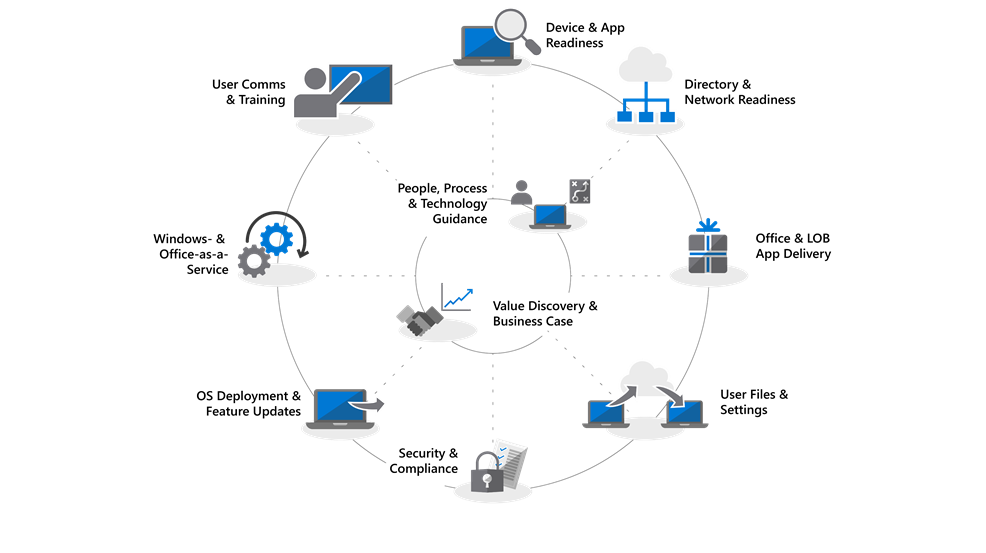
Microsoft Modern Desktop Deployment Center

Preparing to deploy Microsoft Windows 10 and/or Office 365 ProPlus?

This will be the future (well, somehow the present) of Microsoft on the enterprise, specially with large-scale deployment.

So, embrace the modern desktop deployment with Microsoft Desktop Deployment Center.

In this Microsoft’s website you’ll find guidance with videos, planning, step-by-step guides and a lot more.

Find all the info here:
Modern Desktop Deployment Center

Sunday, December 30, 2018

How to View Power Usage for Apps on Task Manager

In the plethora of new features and improvements in Windows 10 October 20180 Update (aka v1809) here’s one that comes with Task Manager.
You can now view the power usage for each app and also it’s trend.

To do so, follow this steps:

  1. Open Task Manager (right-click taskbar or ctrl+shift+esc)
  2. Click the Processes tab
  3. Right-click any available column header and select the Power usage option and, if you want, select the Power Usage Trend also.

How to Install Intel Graphics Windows DCH Drivers

With Windows 10 October 2018 Update (aka v1809), introduced a new way for device drivers to work with the Universal Windows Drivers architecture.

One of the major differences with the new architecture is that streamlines the work for drivers developers which can create a single driver package that can run across different device types, for example, the sam package can run in desktops, laptops or embedded systems.

In this transition, Intel is already making available new drivers called Windows DCH Drivers or Windows Modern Drivers and they’re meant to take use of the Universal Windows Platform (UWP) and replace the old/legacy drivers.
This is particularly important since the future Windows Core OS will not support Win32 applications natively (they will run in some kind of virtual sandbox).

So, if you want to try the new drivers, follow this steps:

  1. Check if your Intel Graphics card is supported:
    • Open Device Manager
    • Expand Display Adapters
    • Check if you have one of the following supported adapters
      • UHD Graphics 600/605
      • UHD Graphics 620/630
      • HD Graphics 500/505
      • HD Graphics 510/515/520/530
      • HD Graphics 610/615
      • HD Graphics 620/630
      • Iris Graphics 540
      • Iris Pro Graphics 580
      • Iris Plus Graphics 640/650
      • Iris Plus Graphics 655

  2. Installing the new Intel Graphics DCH Drivers:
    • Using Intel Driver and Support Assistant (iDSA) tool:
      • Go to Intel Support website
      • Click the Intel Driver and Support Assistant Installer
      • Install the tool and restart your computer
      • Next, you’ll get the iDSA tool icon on the systray
      • Right-click and select “Che For New Drivers”
      • The tool will scan and install the new DCH drivers
    • Using the Intel Graphics driver installer:
      • Go to Intel Support website
      • Under “Available Downloads”, click the “dch_win64_xx.xx.xxx.xxxx.exe” button
      • After download completes, just execute the *.exe file and follow the steps for installing the DCH driver.


And you’re done, and the new DCH drivers are installed.
If you wan to make sure, just go to Device Manager again and verify that your display adapter driver version is higher than 25.20.100.6444.

Sunday, October 7, 2018

Remote Server Administration Tools Windows 10 v1809 it’s now available through “Features on Demand” only

So it seams Windows Remote Server Administration Tools (RSAT) for Windows 10 v1809 are only available through “Features on Demand” directly.

There will be probably a way to download them and install them offline but for the time being here’s the official way to do it:

  1. Go to Settings > Apps > Manage Optional Features
  2. Click “Add a feature”
  3. Scroll-down the list and install the features you need (ex.: RSAT: Group Policy Management Tools)


If you’d like to do it the “geek way” or need a more unattended procedure here’s how:

  1. Open an elevated command-prompt

  2. Execute the following command:
    DISM.exe /Online /add-capability /CapabilityName:Rsat.ActiveDirectory.DS-LDS.Tools~~~~0.0.1.0 /CapabilityName:Rsat.BitLocker.Recovery.Tools~~~~0.0.1.0

  3. The above example will install 2 features of RSAT


Here’s the capabilities names you can add:

  • Rsat.ActiveDirectory.DS-LDS.Tools~~~~0.0.1.0
  • Rsat.BitLocker.Recovery.Tools~~~~0.0.1.0
  • Rsat.CertificateServices.Tools~~~~0.0.1.0
  • Rsat.DHCP.Tools~~~~0.0.1.0
  • Rsat.Dns.Tools~~~~0.0.1.0
  • Rsat.FailoverCluster.Management.Tools~~~~0.0.1.0
  • Rsat.FileServices.Tools~~~~0.0.1.0
  • Rsat.GroupPolicy.Management.Tools~~~~0.0.1.0
  • Rsat.IPAM.Client.Tools~~~~0.0.1.0
  • Rsat.LLDP.Tools~~~~0.0.1.0
  • Rsat.NetworkController.Tools~~~~0.0.1.0
  • Rsat.NetworkLoadBalancing.Tools~~~~0.0.1.0
  • Rsat.RemoteAccess.Management.Tools~~~~0.0.1.0
  • Rsat.RemoteDesktop.Services.Tools~~~~0.0.1.0
  • Rsat.ServerManager.Tools~~~~0.0.1.0
  • Rsat.Shielded.VM.Tools~~~~0.0.1.0
  • Rsat.StorageReplica.Tools~~~~0.0.1.0
  • Rsat.VolumeActivation.Tools~~~~0.0.1.0
  • Rsat.WSUS.Tools~~~~0.0.1.0
  • Rsat.StorageMigrationService.Management.Tools~~~~0.0.1.0
  • Rsat.SystemInsights.Management.Tools~~~~0.0.1.0


Hope you enjoy it! Winking smile

Sunday, July 22, 2018

Windows 10 – Centralized File Type Association

I want to believe that there was a really good reason why Microsoft done this but…well…not figured out exactly why.

In Windows 10, Microsoft introduced a lot of native apps that allows users to install let additional software and one of the great examples is the ability for Microsoft Edge to open PDF files.
Although this is very helpful for a lot of people, in some cases, specially enterprises, this is not the ideal thing, and a some work need to be done first, not to rely on Adobe Acrobat Reader.

That said, if you need to make sure Adobe Acrobat Reader its your users default PDF reader well…there’s some things you’ll need to do.

I’ll use PDF files as an example because this is the most common one nowadays.
Although there’s more than a way to configure file type association, I believe this is the most flexible approach because you can change the configuration in a very easy and centralized way.
 
What you’ll need:

  • A XML file with the file types association
  • A centralized share where the XML will be downloaded for your users
  • Change/Create a GPO

What you need to do:

  • The XML file will contains information about:
    • file type (extension)
    • the default app to open the file type
    • the program id
  • You can create the xml from scratch, or you can export your current configuration with DISM:
    DISM /online /Export-DefaultAppAssociations:C:\Temp\defaultappassociations.xml
  • If you export the xml file, now you just need to cleanup the line you don’t need and keep the ones you need (in this case, PDF)
  • Here’s an example of how it looks like:
    <?xml version="1.0" encoding="UTF-8"?>
    <DefaultAssociations>
       <Association Identifier=".acrobatsecuritysettings" ProgId="AcroExch.acrobatsecuritysettings" ApplicationName="Adobe Acrobat Reader DC" />
       <Association Identifier=".fdf" ProgId="AcroExch.FDFDoc" ApplicationName="Adobe Acrobat Reader DC" />
       <Association Identifier=".pdf" ProgId="AcroExch.Document.DC" ApplicationName="Adobe Acrobat Reader DC" />
       <Association Identifier=".pdfxml" ProgId="AcroExch.pdfxml" ApplicationName="Adobe Acrobat Reader DC" />
       <Association Identifier=".pdx" ProgId="PDXFileType" ApplicationName="Adobe Acrobat Reader DC" />
       <Association Identifier=".xdp" ProgId="AcroExch.XDPDoc" ApplicationName="Adobe Acrobat Reader DC" />
       <Association Identifier=".xfdf" ProgId="AcroExch.XFDFDoc" ApplicationName="Adobe Acrobat Reader DC" />
       <Association Identifier="acrobat" ProgId="acrobat" ApplicationName="Adobe Acrobat Reader DC" />
    </DefaultAssociations>
  • Now, just to make sure everything is fine, open the xml file just to check if opens the right way, because copy+paste may sometime not be a good friend.
  • Now that you have your xml file, you’ll need to put it on a network share
  • Next, create a Group Policy Preference (GPP) to copy the file to your machines. The file must be copied to a location where users have read permission (and just read permission).
  • And now the last step. Making sure Windows knows that there’s a file type association xml file to read.
  • Open or create a GPO, and navigate to:
    Computer Configuration > Administrative Templates > Windows Components > File Explorer
  • Edit “Set a default association configuration file”
  • Now you’re going to add the path where the xml file is on your clients

And…you’re done.
This will take effect when users logoff/logon again.

Because of the way Windows 10 monitors and analyzes file association hijacking the first time a user tries to open a PDF file, there will be a prompt about it like the one below, this happens only once:

And…that’s it.
This looks more complicated than it is but…for me, the main issue is how a new Windows 10 version can easily break the configuration, which means, another thing for your checklist when moving to a new Windows 10 Feature Update.

Last but not least, here are some other approach or other ways to explain how to configure Windows 10 file type association:

TechNet Blogs - Windows 10 – How to configure file associations for IT Pros?

4SysOps - Default File Associations in Windows 10

MSDN Blogs - Making file type associations enterprise ready

Sunday, July 8, 2018

Removing Tiles from Action Center for All Users

SOFTWARE\Microsoft\Windows\CurrentVersion\ActionCenter\Quick Actions\UnpinnedByDefault
SystemSettings_Connections_Add_VPN

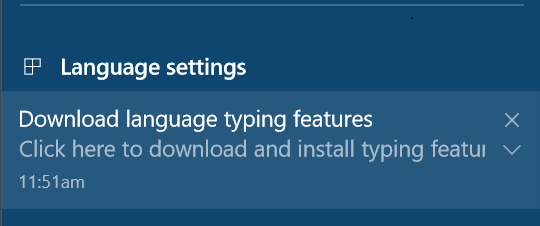
Avoiding the “Download language type features” Annoying Popup in Your Golden Image

You’ve created you’re perfect golden image, everything installed correctly, all the Microsoft hotfixes are installed, no missing drivers and…after a while you get a popup stating that you need to “download language typing features”…

Just to get things a little bit more frustrating, you’re machines are behind a proxy and cannot download this additional features.

This is a common scenario on enterprises, specially and foremost on enterprises outside U.S.

To strip out Windows from being a large ISO/WIM file, Microsoft decided to add some additional features with an “on-demand” installation. This means that some features that can be activated in the O.S. may need to download they’re source files from the Internet.
This happens if you want to activate .NET Framework 3.5 for example.

Now, to avoid this from happening follow the steps bellow.
Keep in mind that this is an example for enterprises with Microsoft VLS. If not an enterprise, the main difference is that you should find the direct download path on the CBS.log file also.

  1. First thing you need to know, is exactly which files Windows needs to download. For this one you need to take a look at this file:
    C:\Windows\Logs\CBS\CBS.log

  2. Now search for something like “Microsoft-Windows-LanguageFeatures-“. If you look closely to this log file you’ll notice that this file could not be downloaded or some kind of error.
    Usually there are 2 files you need. the “Basic Language” and “OCR” features

  3. Now that you know what you need, go ahead to the Microsoft Volume Licensing Service Center website and download the following ISO:

  4. When you mount the ISO, you’ll find the files you need as a *.cab file.

  5. Copy the files you need and now you just need to had them to your golden image.

  6. To install this cab files you just need to run this DISM commands, like in this example:
    DISM /Online /Add-Package /PackagePath:Microsoft-Windows-LanguageFeatures-Basic-pt-pt-Package.cab

And..you’re done!

Wednesday, June 6, 2018

Windows 10 – Updating Trusted Root Certificates List

Since Windows 8.1, Microsoft changed the way Trusted Root Certificates List (TRCL) get’s updated.

Now, it uses the Windows Update services to do this, and this can be an issue for some enterprises with machines that don’t have Internet access or if you disabled Windows Update in your environment.

Also, if you want to look at this in a different way, it allows you as a SysAdmin to completely control which certificates are allowed or not in your environment.

So, here’s a quick procedure on how you can update that the TRCL without Windows Update enabled:

  1. Downloading Updated TRCL
    • On a machine with Internet access run the following command:
      certutil –generateSSTFromWU roots.sst
    • Then grab that file and create a package with your endpoint management software (ex.: SCCM)

  2. Installing the Updated TRCL
    • Now that you have generated your SST file, you just need to import the certificates to your machines.
    • For this one, the easiest way is to create a powershell script with the following line:
      $sst_file = (Get-ChildItem –Path C:\roots.sst)
      $sst_file | Import-Certificate –CertStoreLocation Cert:\LocalMachine\Root

And that’s it!

Tuesday, May 8, 2018

Windows 10 v1803 Enterprise ISO Available Now Through Microsoft Volume Licensing Service Center

Capture

There’s always a gap between Windows 10 Feature Updates launching and the availability of the ISO on VLS but Microsoft made available today through Microsoft Volume Licensing Service Center Windows 10 v1803 Enterprise ISO.

So, go ahead and get it! :)

Sunday, May 6, 2018

GPOs – Administrative Templates for Windows 10 v1803 (April 2018 Update) Available

Untitled

And here are the new admx files for Windows 10 v1803 (April 2018 Update).
Administrative Templates (.admx) for Windows 10 April 2018 Update (1803)

Furthermore, you can find all you can configure with this admx and previous one’s using this guide:
Group Policy Settings Reference for Windows and Windows Server

Remote Server Administration Tools (RSAT) for Windows 10 Version 1803 Available

Untitled

With the release of Windows 10 v1803, Microsoft also made available a new version of Remote Server Administration Tools for Windows 10.

Before install it’s important to read “System Requirements” and “Additional Notes”.
Just to highlight some:

  • You should uninstall previous installed RSAT version you have.
  • If you find yourself with the DNS tools missing, you should install WS_1803 or WS2016 RSAT package.

So, go ahead and download the new RSAT for Windows 10 v1803 here:
Microsoft Remote Server Administration Tools for Windows 10

Tuesday, November 28, 2017

Win10 – “Sets” – What belongs together, stays together!

sets

So Microsoft eared all about it and developed “Sets”. This is not the final and definitive name but will be available soon for everyone on Windows Insider Program (WIP).

This new feature will allow users to have a similar experience with tabs like in Edge browser.
The new mantra for “Sets” is that what belongs together stays together.
Basically this means that you can aggregate on a single window everything you need about a subject.

For example, during a project, you need to browse some websites, edit your PowerPoint presentation and create a Word document, all this on the same window what should make you work faster.

Here’s a video from Microsoft showing off Windows “Sets”:
Microsoft Windows - Sets in Windows 10

Monday, November 20, 2017

Issues – Microsoft Office Excel 2016, 2013 Cursor Flickering with Windows 10 v1709 (Fall Creators Update)

After deploying Windows 10 v1709 (Fall Creators Update) and when opening an Excel spreadsheet I’ve noticed a strange behavior where even on a blank spreadsheet the mouse cursor seemed to flicker all the time.

Thought it was something related with my display driver so I’ve updated to a different one and still the same behavior. It’s something like the video below.

This is still an ongoing investigation like reported on Microsoft Office Support website:
Excel cursor flickers after updating to Windows 10 Fall Creators Update (v1709)