
Here's a nice script to remove all or specific Windows Inbox Apps like Xbox App, Skype, Bing Weather, etc.

Here's a nice script to remove all or specific Windows Inbox Apps like Xbox App, Skype, Bing Weather, etc.
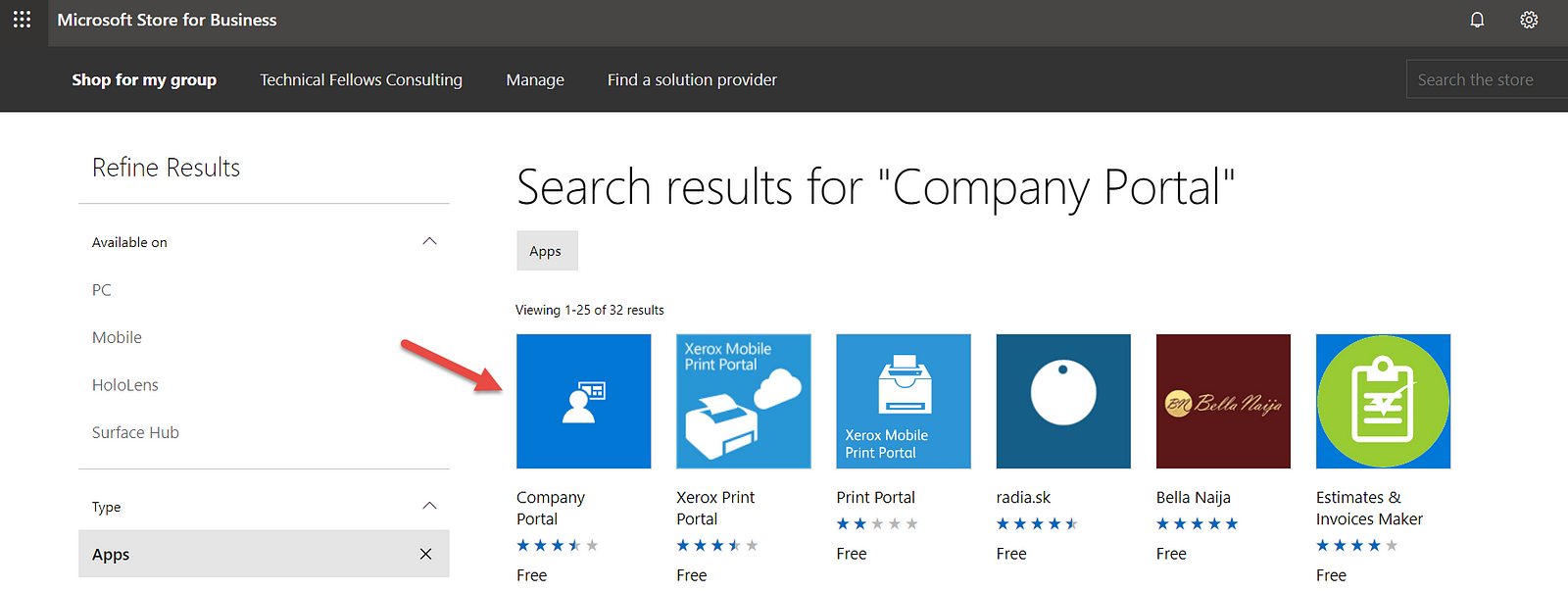
Starting the first steps with Microsoft Intune with some try and error on the mix, here’s something I’ve learned about client apps.
When you go to Client Apps, and if you’ve already synced your Microsoft Store for Business with Intune, you’ll see the apps you’ve approved on the store on that list.
But, a strange or…by design thing happens. Imagine you approve an app and the you revoke it. You’ll notice when you manage your Store for Business that the app isn’t there no more but…you still see it in Intune Client Apps list and the option to delete it is greyed out.
Now, to solve this, follow this steps:
SOFTWARE\Microsoft\Windows\CurrentVersion\ActionCenter\Quick Actions\UnpinnedByDefault
SystemSettings_Connections_Add_VPN

Here’s a tip to remove the “infamous” IE Maintenance gpo settings if you don’t have any way to get your hands on a Windows XP machine or simply wanna do it the “geek way” using Windows 2012 R2.
Follow these steps:

So, you finally got rid of undesired apps that you don’t want on your base/gold image but after that you find your with a bunch of other apps that you don’t know where they came from?
Basically this is a “functionality” on Windows 10 that automatically downloads some consumer apps.
To get rid of these ones follow this steps:
And you’re done!
Don’t want the store icon on your users taskbar?
Here’s how to remove it, and don’t allow it to get there again, using group policy.
And you’re done!
Just remember that you need to have the most edit GPOs from a Windows 10 v1703 or you need to install the most recent ADMX templates for Windows 10.


