Showing posts with label export. Show all posts

Monday, December 11, 2017

Tips & Tricks – Import/Export Windows Firewall Settings Command-Line

Here’s a nice tip for those that for some reason need to configure Windows Firewall (or Windows Defender Firewall on Windows 10).

The recommended way to do this should be using a group policy but because you may have a non-domain joined machine on your network, here’s how to do it.

  1. First of all, configure everything you need in Windows Firewall on a reference machine
  2. Then, open an elevated command-prompt and type the following command:
    netsh advfirewall export “C:\Temp\WindowsFirewallRules.wfw”

    advfirewall01
  3. Now that you have the file, you can import it to any machine using the following command:
    netsh advfirewall import “C:\Temp\WindowsFirewallRules.wfw”

    advfirewall02

If for any reason you need to reset firewall rules to default values just type:
netsh advfirewall reset


Tuesday, July 18, 2017

Win10 Deploy – Forcing Start Menu Layout and Allow Users to Pin Shortcuts

Following the previous article (Win10 Deploy – Customizing Start Menu and Forcing it with GPO) you could create a customized layout, force the layout to be applied but, the users could not pin any shortcuts they need.

If you want users to be able to do that, just follow these steps after exporting the xml file:

  • Edit the xml file exported
  • Located the tag “<DefaultLayoutOverride>
  • Change the tag to the following:
    <DefaultLayoutOverride LayoutCustomizationRestrictionType=”OnlySpecifiedGroups”>
  • Save the xml file

And it’s all done.

Now, you’re Start Menu layout has the pinned shortcuts you want (locked) and users are able to add they’re own shortcuts.

Sunday, July 9, 2017

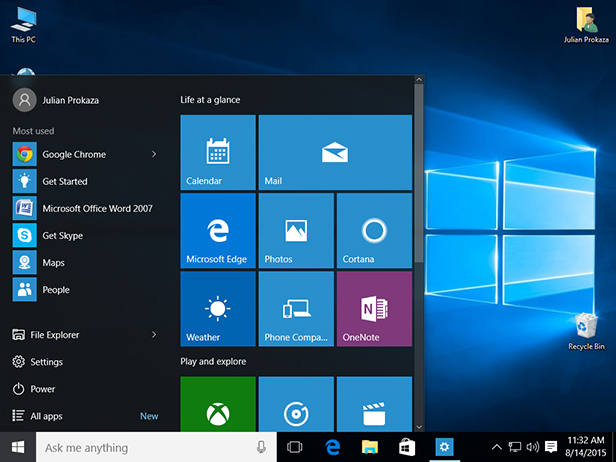
Win10 Deploy – Customizing Start Menu and Forcing it with GPO


One of the most notable and visible changes on Windows 10 O.S. is the new Start  Menu. A mix of “the old” Start Menu with an highlight on UWP and apps.

Now, for an enterprise it’s usually important to make sure that they’re line-of-business (LoB) applications are always there or even make sure that there’s an harmony on every machine of the enterprise, where everyone have access through Start Menu to the same applications or links.
So, if you want to customize and force a specific Start Menu layout, here’s how.

Customizing and Exporting Layout
First things first. Let’s start by customizing the Start Menu you want to give to all users:
  • Login the reference machine (preferably with a “model user”)
  • Now customize you layout has you like it
  • When finished, open Powershell console and export the Start Menu layout like in this example:
    Export-StartLayout –Path C:\Themes\StartMenu\StartLayout001.xml
Now that you have your new Start Menu layout, you just have to force it using a Group Policy.

Forcing Start Menu Layout

  1. Open GPMC
  2. Edit your GPO
  3. Navigate to Computer Configuration (or User Configuration) | Administrative Templates | Start Menu and Taskbar 
  4. Double-click “Start Layout"
  5. Select “Enabled
  6. Write down the path where you xml file is located
    (in our example would be C:\Themes\StartMenu\StartLayout001.xml)
And you’re done!

Monday, November 30, 2015

Scripting - Getting AD Users Logonscript and Account Status


Here's a nice script for getting domain users information and exporting it to a text file.
This script retrieve the following info:
  • Display Name
  • Username
  • Logonscript
  • Account Status
The account status retrives "code numbers" so here the translation of the codes:
  • 514 | Disabled Account
  • 546 | Disabled, Password Not Required
  • 66050 | Disabled, Password Doesn't Expire
  • 66082 | Disabled, Password Doesn't Expire & Not Required
  • 262658 | Disabled, Smartcard Required
  • 262690 | Disabled, Smartcard Required, Password Not Required
  • 328194 | Disabled, Smartcard Required, Password Doesn't Expire
  • 328226 | Disabled, Smartcard Required, Password Doesn't Expire & Not Required
And now, the script:

'**********************************************************************
' Application: Get Domain Users Information
'
' Overview: Get's the following information from domain users:
'            - Display Name
'            - Username
'            - Logonscript
'            - Account Status
'
' Author: FrontSlash Blog (http://www.front-slash.blogspot.com)
'**********************************************************************
 
'-------------------------------------------------------------------------'
'  Variables Declaration                                                  '    
'-------------------------------------------------------------------------'
Dim oContainer
Dim OutPutFile
Dim FileSystem
Dim MyDate


'-------------------------------------------------------------------------'
'  Variables And Objects Initialization                                   '
'-------------------------------------------------------------------------'
MyDate = Date()
MyDate = Replace(MyDate, "/", "-")

Set FileSystem = WScript.CreateObject("Scripting.FileSystemObject")
Set OutPutFile = FileSystem.CreateTextFile("DomainUsers" & MyDate & ".txt", True)
Set oContainer = GetObject("LDAP://dc=your,dc=domain,dc=here")
oContainer.Filter = Array("organizationalUnit")
strList = ""


'-------------------------------------------------------------------------'
'  MAIN                                                                   '
'-------------------------------------------------------------------------'

'Enumerate Container
    EnumerateUsers oContainer


'Clean up
    OutPutFile.Close
    Set FileSystem = Nothing
    Set oContainer = Nothing
    Set MyDate = Nothing
    
    'The line below is for testing purposes only.
    'WScript.Echo "Finished"
     WScript.Quit(0)

'Functions
 'EnumerateUsers

   Sub EnumerateUsers(oCont)
    Dim oUser
    For Each oUser In oCont
     'On Error Resume Next
       Select Case LCase(oUser.Class)    
        Case "user"
         If Not IsEmpty(oUser.distinguishedName) Then
          OutPutFile.WriteLine oUser.displayName & ";" & oUser.sAMAccountName & ";" & oUser.scriptPath & ";" & oUser.userAccountControl
         End If
        
        Case "organizationalunit", "container"
         EnumerateUsers oUser
        End Select
     Next
   End Sub


Enjoy it! ;)

Thursday, April 9, 2015

Windows Deployment - DISM - List injected drivers in table format


Have you ever needed to verify which drivers you've injected on your WIM file?
Ever been asked to get a list of the injected drivers for a report and needed to take a lot of time just creating tables and formatting the information for reporting?

Well, here's a nice tip that can save you a lot of time!

Follow these steps:

  1. Open Windows ADK command-prompt as Administrator

  2. Mount your WIM file on disk, for example:
    DISM /Mount-Wim /WimFile:D:\ISOS\Win81\sources\install.wim /index:1 /MountDir:D:\MountPoint

  3. Now, just use the above command to get all inject drivers and format the output:
    DISM /image:D:\MountPoint /Get-Drivers /format:table

And there you go! Nice format list of injected drive on your WIM! :)