Showing posts with label force. Show all posts

Friday, November 3, 2017

Tips & Tricks – IE11 Enterprise Mode – Forcing to Update Websites List

Sometimes you need to do a quick change to your IE11 Enterprise Mode site list and you also need to quickly test this change.

To force the update of websites list just do the following:

  1. Do you changes using the Enterprise Mode Site List Manager
  2. On your target machine, close all Internet Explorer instances
  3. Open registry editor (regedit.exe)
  4. Navigate to HKEY_CURRENT_USER\Software\Microsoft\InternetExplorer\Main\EnterpriseMode
  5. Delete the entry called “CurrentVersion
  6. Open Internet Explorer again
  7. Done!

Tuesday, July 18, 2017

Win10 Deploy – Forcing Start Menu Layout and Allow Users to Pin Shortcuts

Following the previous article (Win10 Deploy – Customizing Start Menu and Forcing it with GPO) you could create a customized layout, force the layout to be applied but, the users could not pin any shortcuts they need.

If you want users to be able to do that, just follow these steps after exporting the xml file:

  • Edit the xml file exported
  • Located the tag “<DefaultLayoutOverride>
  • Change the tag to the following:
    <DefaultLayoutOverride LayoutCustomizationRestrictionType=”OnlySpecifiedGroups”>
  • Save the xml file

And it’s all done.

Now, you’re Start Menu layout has the pinned shortcuts you want (locked) and users are able to add they’re own shortcuts.

Sunday, July 9, 2017

Win10 Deploy – Customizing Start Menu and Forcing it with GPO


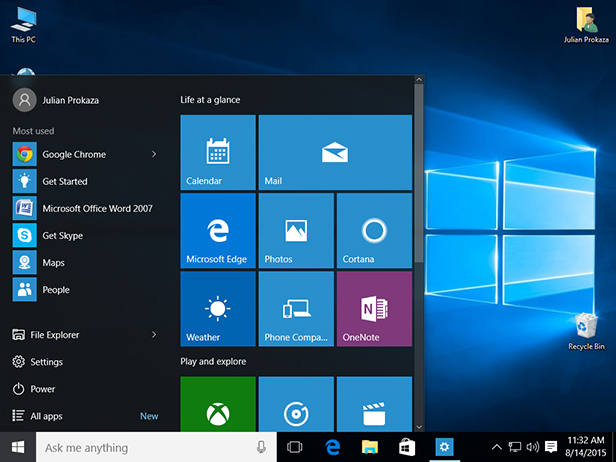
One of the most notable and visible changes on Windows 10 O.S. is the new Start  Menu. A mix of “the old” Start Menu with an highlight on UWP and apps.

Now, for an enterprise it’s usually important to make sure that they’re line-of-business (LoB) applications are always there or even make sure that there’s an harmony on every machine of the enterprise, where everyone have access through Start Menu to the same applications or links.
So, if you want to customize and force a specific Start Menu layout, here’s how.

Customizing and Exporting Layout
First things first. Let’s start by customizing the Start Menu you want to give to all users:
  • Login the reference machine (preferably with a “model user”)
  • Now customize you layout has you like it
  • When finished, open Powershell console and export the Start Menu layout like in this example:
    Export-StartLayout –Path C:\Themes\StartMenu\StartLayout001.xml
Now that you have your new Start Menu layout, you just have to force it using a Group Policy.

Forcing Start Menu Layout

  1. Open GPMC
  2. Edit your GPO
  3. Navigate to Computer Configuration (or User Configuration) | Administrative Templates | Start Menu and Taskbar 
  4. Double-click “Start Layout"
  5. Select “Enabled
  6. Write down the path where you xml file is located
    (in our example would be C:\Themes\StartMenu\StartLayout001.xml)
And you’re done!

Friday, August 5, 2016

Windows 10 Anniversary Update (v1607) - Forcing Update


So after 3 or 4 days your Windows 10 v1511 still not upgrading to v1607 (anniversary update).
Here's a quick and easy way to force update right now!
  • Go to Windows 10 update history website
  • Just click "Get the Anniversary Update now" button and download the upgrade tool
  • The tool we'll check your system before upgrade and...you're done! ;)