Showing posts with label vmware. Show all posts

Saturday, May 15, 2021

VMware Horizon – Get user login date

Here’s a nice SQL query to get users login to your VDIs:

SELECT a.ModuleAndEventText,a.Time
FROM event_historical a
INNER JOIN
(SELECT ModuleAndEventText,
MAX(Time) as Time
FROM event_historical
GROUP BY ModuleAndEventText
) AS b
ON a.ModuleAndEventText = b.ModuleAndEventText
AND a.Time = b.Time
WHERE EventType = 'Agent_CONNECTED';

Thursday, October 26, 2017

VMware vSphere Web Client – Shockwave Stopped Working (Solved!)

It was noticed along the web and I’ve experienced this myself.

After updating Adobe Flash Player to 27.0.0.170 I couldn’t connect to vSphere Web Client (Flash version) with Google Chrome or Opera browsers.

You would get an “Shockwave Flash crash” similar to the one below:

image

Well, recently Adobe launched an update to Adobe Flash Player (27.0.0.183) that solves the issue.

You may also experience the same issue with Microsoft Edge. The new update that solves this issue.
Just run Windows Update or download the KB4049179 directly from Microsoft Update Catalog.

Wednesday, November 9, 2016

VMware PowerCLI Scripts – Get ParentVM used on Pools

In the last days I needed to get a quick view of which templates we’re using on enviroments. Because we have linked clones, our pools have configured a ParentVM and the respective Snapshot.

If you have a large environment after a while you may miss a little bit control of which templates/parent vms are really being used, which ones were just for testing purposes and you don’t need them anymore, etc.

So, for a quick look at your environment and to understand which parent vms each pool is using just follow these steps:

  • First you’ll need to open View PowerCLI on the correspondent Connection Server
  • Then, run the following command:
    Get-Pool
  • As simple as that, you’ll get all info from each pool
  • If you want something like that but, with less information use the followin command:
    Get-Pool | Select pool_id, displayName, enabled, vcServerName, parentVMPath, parentVMSnapshotPath
  • Like in any powershell script or command, you can always export the results to a csv file to work it up later:
    Get-Pool | Select pool_id, displayName, enabled, vcServerName, parentVMPath, parentVMSnapshotPath | export-csv D:\export.csv

And…it’s done! :)

Wednesday, November 2, 2016

VMware Remote Console – hcmon driver error

hcmondrivererror

Last week I stumble upon this error when installing VMware Remote Console (VMRC).
After some googling about it I found just one way to solve this but…it works.

To quickly solve this and be able to user VMRC, just uninstall first VMware vSphere Client and then install VMRC.

And…it done!

Hope this helps people with the same issue. If anyone has any other way to solve this, please feel free to share.

Sunday, September 11, 2016

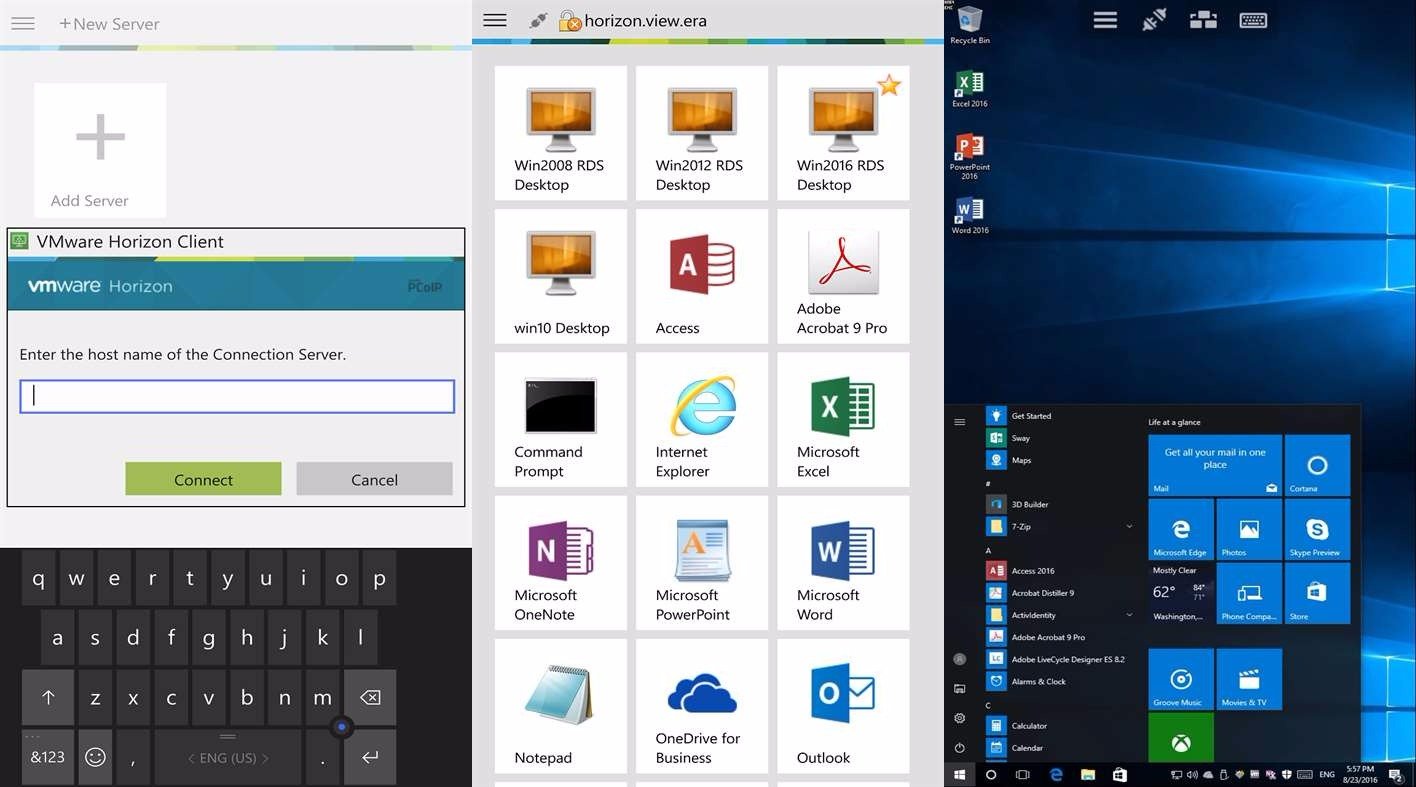
VMware Horizon Client - New PC and Mobile App Available


And may I say...Finally!
VMware made available a Windows 10 PC and Mobile app for VMware Horizon Client!


This new app it's compatible with VMware Horizon 7 and here's the release notes highlights:
  • Leave the desktop behind with Horizon Hosted Applications: Use VMware Horizon 7 hosted applications, leave the desktop behind and run remote application with delight experience.
  • Enhanced user experience: The VMware Blast Extreme protocol used with Horizon 7 is designed and optimized for mobile users. Blast Extreme leverages H.264 hardware decoding to deliver the best remote experience while reducing power consumption.
  • Work smarter with continuum: Attach your Windows 10 phone to a monitor, mouse and keyboard through wired or wireless accessories to get complete workspace experience without productivity compromise.
Note that this app it's VMware Horizon 7 compatible only and it's still in beta.

If you want to take a look and give your own opinion download it on Windows Store:

Wednesday, December 2, 2015

WDS - Injecting VMware VMXNET3 Driver Error


I'm creating a new WDS + MDT infrastructure almost from scratch and I'm using VMware for deployment and image creation.
Because I'm using VMware VMXNET3 for network and VMware ParaVirtual SCSI for storage I needed to inject this 2 drivers on my Windows Deployment Servers (WDS) boot image for installing the created images.

Doing this on MDT when creating the boot images for the litetouch deployment has no issue, but for the boot.wim for installing images (extracted for the sources\boot.wim of Windows DVD) something goes wrong.
For some unknown although the VMware ParaVirtual driver gets easily inject, the VMXNET3 driver don't.
Not really investigated the reason, but has a workaround, follow this easy steps.

So what we're going to do it's to inject the drivers on boot.wim file using DISM:
  1. First copy the file from a DVD/ISO (it's located on "...\sources\boot.wim") and copy it to a local drive (ex.: D:\Temp\)

  2. Than you'll need to mount the WIM file:
    DISM /Mount-Image /ImageFile:D:\Temp\boot.wim /Index:2 /MountDir:D:\Temp\MountPoint

  3. Now, you're ready to inject the VMware VMXNET3 Driver (or any other drivers), you just need to point to the *.inf file:
    DISM /Image:D:\Temp\MountPoint /Add-Driver /Driver:D:\Temp\Drivers\VMwareVMXNET3\vmxnet3ndis6.inf

  4. Drivers injected, now unmount and commit changes:
    DISM /Unmount-Image /MountDir:D:\Temp\MountPoint /Commit

And you're done!
Now you just need to publish that boot.wim on your WDS and deploy images.

Monday, December 15, 2014

VMware - Getting Your Hosts Up-to-Date with VUM


If you have a large virtual environment, it can be difficult to keep up-to-date with all your hosts. Well...to be true, even in a small-medium environment, vCenter Update Manager (VUM) can really help with and be a time saver.

With VUM you can control all the patches, bugfixes and upgrades from VMware, but it's also possible to get specific updates from your hardware's vendor.

So, in VUM you'll just need to insert a new "Download Source" to get this updates:

HP Depot
http://vibsdepot.hp.com/index.xml


DELL Depot
http://vmwaredepot.dell.com/index.xml


If you need some help to configur VUM in your infrastructure follow this nice guide:
Technologist - Install VMware vCenter Update Manager


Wednesday, December 3, 2014

VMware - Understanding Versions and Builds


VMware as a strange build and versions naming and sometimes it's difficult to understand for example if your vSphere or vCenter it's on update 1 or update 2 or something else.

Thinking on that and until a better solution, VMware has an up-to-date website/kb the correlates the builds and versions.

Take a look here:
Correlating VMware products build numbers to update levels (1014508)

Tuesday, October 7, 2014

VMware View - Mouse Disappearing with Internet Explorer 8 and PCoIP


Well, after a "nice" morning trying to troubleshoot an issue with a colleague of mine, finally the answer!

First things first...

The symptoms:
Some users complaining that when navigating on some websites the mouse simply disappeared.


Analysis:
First thing we've noticed was that using RDP protocol instead of PCoIP "solved" the issue.
Using a different browser like Google Chrome also "solved" the issue.

Changing pool settings like Flash Optimization, 3D Renderer, didn't do any effect.


Solution:
Then, after a lot of searching my colleague found this article:
Mouse cursor disappears when using Internet Explorer 8 after upgrading to VMware View Agent 5.2 or 5.3 (2063083)

:) exactly the issue we had!

So, we've download VMware View Agent 5.3.2 from MyVMware, tested it and voilá! Problem solved!


Additional Info:
VMware Horizon View Agent 5.3.2


Hope this helps some people to loose less time that we did! ;)

Sunday, September 14, 2014

WDS and VMware Paravirtual SCSI Drivers


On a VMware VDI environment VMware Paravirtual SCSI driver it's recommended as the SCSI controller for your virtual machines.

In my environment the main template it's created using WDS (which also serves the physical machines).
By default the boot.wim (used to boot machines into WDS and deploy reference images) doesn't have the drivers necessary (or up-to-date) for a VMware environment. For example boot.wim doesn't come with the necessary network drivers for VMware VMXNET3 so this example will serve both for network or scsi drivers.

So, to boot up to WDS and be able to deploy successfully a reference image to a VMware virtual machine which is configured with a VMware Paravirtual SCSI controller, follow this steps:

Getting and injecting the drivers

  • First of all, get a working virtual machine that already has a paravirtual controller installed and be sure that you have the latest VMware Tools installed
  • Login to that vm and go to "C:\Program Files\Common Files\VMware\VMware Tools\"
  • Copy "pvscsi" folder to your WDS server
  • Now you just need to open your WDS console and inject the drivers like shown in the video bellow
  • And your done.
You can now boot a VM with VMware paravirtual scsi controler.

Just keep in mind that if needed, you'll have to get the drivers from a x86 and a x64 machine.

Thursday, May 15, 2014

VMware PowerCLI - Change Pool AutoLogoff Behavior


VMware PowerCLI for View it's a very handful tool if we need to administer a big number of VMware Horizon View pools.
Very similar/based on Microsoft Powershell, VMware PowerCLI allows to run commands directly to VMware View and running scripts also.

Here's a nice one to change a pool's behavior for AutoLogoff after a user's disconnect from a machine.
The script reads a text file that only have the PoolID for all pools that you want to change:

#*********************************************************************
# Application: Change Pool AutoLogoff Timeout From List
#
# Overview: Changes the pool autologoff timeout from a given list
#
#*********************************************************************

$sourcevms = "C:\Pools.txt"
$list = Get-Content $sourcevms

foreach($item in $list){
 Get-Pool -Pool_id $item | Update-AutomaticLinkedClonePool -AutologoffTime 30
}


Monday, January 27, 2014

VMware vCenter Server 5.5 Installation Hangs


When installing vCenter 5.5 (simple installation) on a Microsoft Windows Server 2012, the setup hangs almost when finishing.

This happens because the installer it's looking for something that Windows Server 2012 doesn't have.
The ocsetup.exe file.

To fix this, you'll need to:

  • Find a Windows Server 2008 R2 machine and copy the OCSetup.exe from %windir%\system32 to your Windows Server 2012 machine
  • Then, install the feature Active Directory Lightweight Directory Services
  • Restart your machine and restart your vCenter 5.5 setup
And it's all done! :)


Friday, October 4, 2013

VCE - Building the Vblock Infrastruture Platform - Part 2


Here's the part 2 of Build the Vblock Infrastruture Platform from VCE.
In this short video it's showed the customer installation on it's datacenter.


VCE - Building the Vblock Infrastruture Platform - Part 1

Here's Part 1 of a comprehensive video about how VCE builds the Vblock Infrastruture Platform.
VBlock IP it's a converged infrastruture that allows customers to select preconfigured and integrated solutions with predictable units of power, weight, cooling and geometry for datacenters.

Vblock systems consist of storage from EMC, switches and servers from Cisco and also VMware virtualization software.