Showing posts with label solved. Show all posts

Thursday, October 12, 2023

Intune - Expedite Updates - Expedite Client Missing - Solved


One of the recent functionalities in Microsoft Intune, is the "Expedite Updates".
This allows you to "force" clients to receive Windows Updates as soon as possible. In addition to rely on Microsoft Windows Update service, it also relies on Microsoft Update Health Tools.

Microsoft Update Health Tools as a service called...Microsoft Update Health Service or "uhssvc".

After created the policy to update devices with latest Windows quality update, some devices were reporting "Expedite client missing". 


Although the most common issue is that the device don't really have Microsoft Update Health Tools installed correctly, and you can download it here: Update Health Tools, in this case I found how a different cause.

The Microsoft Update Health Service was Disabled. So it was has easy as enable and start the service and everything just started working right away.

Saturday, August 7, 2021

Windows 11 – tcpip.sys green screen of death (GSOD) [Solved]

Hello and greeting to everyone!

Trying to upgrade your machine to Windows 11 via Windows Insider and getting a green screen of death because something went wrong with tcpip.sys driver?

Ok, this one may not work for everyone, but at least for Portuguese readers that have installed Autenticação.Gov application just follow this tip.

Uninstall Autenticação.Gov before upgrading and…you’re done!

It seems strange but, I could not upgrade 3 different laptops (different models and different vendors) and now the upgrade runs like a charm!

Just hope AMA can fix this issue asap so I can fully install the app again.

Tuesday, July 17, 2018

Adobe Reader DC Black Cursor Instead of Mouse Pointer (Solved)

Here’s just a quick tip for something that happened to me yesterday.
For some strange reason, Adobe Reader DC started to show up a black square instead of a mouse pointer when over blank areas in a PDF document.

To solve this…errr…strange behavior do the following:

  1. Close Adobe Reader DC

  2. Navigate to:
    C:\Users\username\AppData\Local\Adobe\Acrobat\DC

  3. Locate and delete a file named:
    IconCachesomething.dat

Now open Adobe Reader DC and your mouse point is back!

Thursday, October 26, 2017

VMware vSphere Web Client – Shockwave Stopped Working (Solved!)

It was noticed along the web and I’ve experienced this myself.

After updating Adobe Flash Player to 27.0.0.170 I couldn’t connect to vSphere Web Client (Flash version) with Google Chrome or Opera browsers.

You would get an “Shockwave Flash crash” similar to the one below:

image

Well, recently Adobe launched an update to Adobe Flash Player (27.0.0.183) that solves the issue.

You may also experience the same issue with Microsoft Edge. The new update that solves this issue.
Just run Windows Update or download the KB4049179 directly from Microsoft Update Catalog.

Monday, July 3, 2017

Win10 Deploy–Stuck at 20% during Install Operating System [Solved]

Today, after adding Windows 10 v1703 Cumulative Update June 2017 (KB4022716) to my base image, it was time to test the image deployment.

Don’t understanding why, all my installations got stuck at 20%…for hours!

After thinking a little bit about this, I took a quick look to BDD.log and there was a really strange thing.
The log add a lot of lines similar to this one:
Add package {7fe1f303-a528-4154-904b-ee10f4d79068} ZTIPatches 29.7.2012 23:06:09 0 (0x0000)

Basically, a lot of updates/hotfixes were installing and then…the issue!

This may be a “beginner mistake” but what was happening was as simple as this:

I use the same MDT Deployment Share for my other base images.

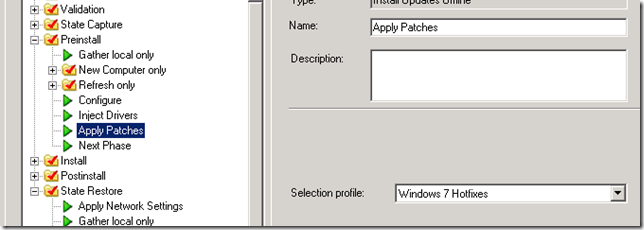
To save me some time, I’ve copied my Windows 7 x64 task sequence and completely forgot to change my Selection Profile from “Windows 7 Hotfixes” to “Windows 10 Hotfixes” and…well…basically I was applying all my Windows 7 x64 hotfixes to my Windows 10 x64 installation..

Untitled

So, this in not a bug or something like that but just a simple mistake that took me some time to solve.

Hope this save other some time!

Friday, August 26, 2016

GPOs - Disabling BitLocker Service Fails via Group Policy Preferences [Solved]


Today I've came across a strange issue when trying to disable "BitLocker Drive Encryption Service" with Group Policy Preferences (GPP).

Thanks to Helge Klein - Tools for IT Pros website this was really quick to solve!

After some reading, it seems it's related with the service permissions. This can be proven if you navigate to event viewer and you'll see a warning in application event log with an "Access Denied" for the Group Policy Services source.

"Googling" a little more about this, I've found out a way to solve this one.

So, follow theses steps:
  1. First of all, download SetAcl from here
  2. Now run following from the command-line (elevated)
    SetACL -on BDESVC -ot srv -actn ace -ace n:Administrators;p:full
And...it's all done! Now just execute "gpupdate /force" or reboot and then BitLocker Drive Encryption Service will be in "Disabled" state.

Wednesday, February 24, 2016

GPOs - Black Screen After Applying Wallpaper GPO [Solved]

And after 3 days of maniac troubleshooting, googling and...1 hour of Microsoft Premier Support this one it's finally solved!
Here's a quick resume of the issue and, in my case, what was happening.

Symptom
After apply a GPO to change Windows background to a corporate wallpaper for all users, instead of the changing to the correct image, users got a black screen.


Issue/Resolution
After 3 or 4 days of troubleshooting Microsoft gave me a nice way to quickly understand if this was a problem with our image or something else.
  • Get an image that originally comes with Windows, you can find them in "C:\Windows\Web\Wallpaper\".
  • Now, copy the image to the same folder and the same name you've configured your GPO setting.
  • Reboot the machine
Now, if the image shows up, this probably means that there's an issue with your image.

In my case, the image that was delivered was 8 bit depth instead of 24 bit depth. This caused the issue.
After converting the image to 24bit depth (with Paint.NET for example) the corporate wallpaper showed up exactly how it should!


Hope this helps people struggling with this issue!