Showing posts with label login. Show all posts

Saturday, May 15, 2021

VMware Horizon – Get user login date

Here’s a nice SQL query to get users login to your VDIs:

SELECT a.ModuleAndEventText,a.Time
FROM event_historical a
INNER JOIN
(SELECT ModuleAndEventText,
MAX(Time) as Time
FROM event_historical
GROUP BY ModuleAndEventText
) AS b
ON a.ModuleAndEventText = b.ModuleAndEventText
AND a.Time = b.Time
WHERE EventType = 'Agent_CONNECTED';

Friday, June 30, 2017

Windows 10 – GPOs – Disable Password Reveal

Untitled

Don’t want anyone to see the typed password on your Windows logon screen or anywhere on system?

Here’s how:

  1. Open GPMC
  2. Edit your GPO
  3. Navigate to Computer Configuration | Administrative Templates | Windows Components | Credential User Interface
  4. Double-click “Do not display the password reveal button”
  5. Select “Enabled”

If you want to apply this to Internet Explorer only:

  1. Navigate to Computer Configuration | Administrative Templates | Windows Components | Internet Explorer | Security Features
  2. Double-click “Do not display the password reveal button”
  3. Select “Enabled”

Sunday, December 4, 2016

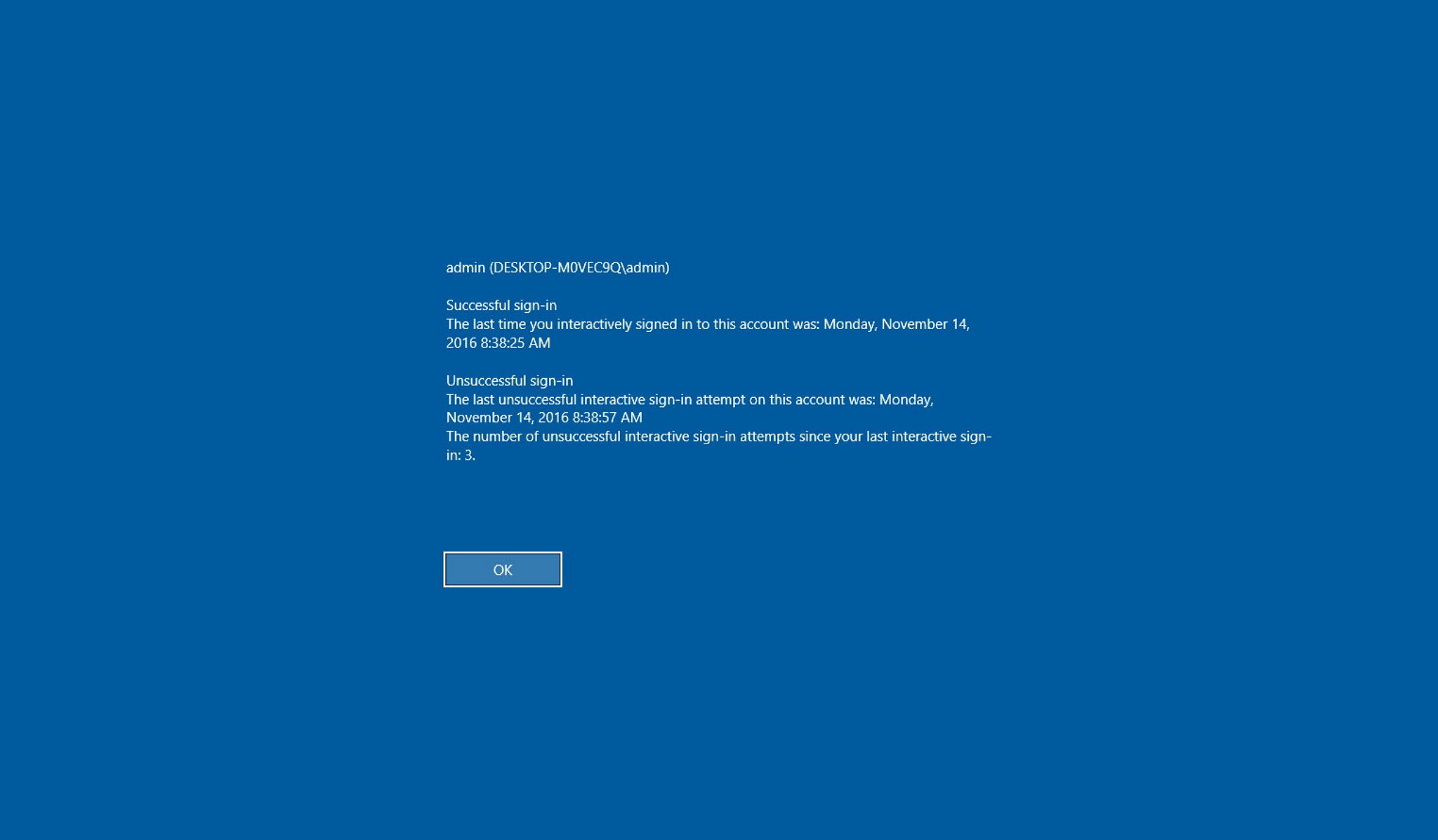
Windows Tips – Display Previous Logon Information

For debugging purposes you may need to get information about the last login on a machine, so here’s a tip to show you that information in a very easy way.

You can use both Group Policy or Registry to achieve this:

Group Policy

  • Open your GPO Editor (if local gpo just type gpedit.msc from “run…”)
  • Navigate to Computer Configuration > Administrative Templates > Windows Componentes > Windows Logon Options
  • On the right side double-click “Display information about previous logons during user logon”
  • Now just select “Enabled” and than “Apply”
  • Click OK to finish


Registry

  • Open registry editor (type regedit from “run…”)
  • Navigate to HKEY_LOCAL_MACHINE\SOFTWARE\Microsoft\Windows\CurrentVersion\Policies\System
  • On the right side create a new DWORD (32-bit) value
  • Name it “DisplayLastLogonInfo”
  • Double-click the DWORD you’ve just created and change the value from 0 to 1
  • Close registry editor to finish

And you’re done!
For both cases, restart your machine to view the change in action.