Saturday, June 10, 2017

Windows Deployment–The Importance of WinSAT Formal

WinSAT was formally introduced with Windows Vista to give some kind of benchmark of the PC and also to optimize a system based on a series of ratings.

A good example of this, it’s the ability to detect if your computer has a SSD drive, and if so, it disables Prefetch.

Here’s an excellent article from the guru Johan Arwidmark based on the research of Steven Kister where it shows the importance of using WinSAT formal at the end of your task sequences:
Why adding WinSAT formal to your task sequence can be a shiny thing to do

Win 10 – GPOs – Disabling First Login Animation

Just a quick tip for those that don’t want the first login animation to appear for they’re users:

  • Navigate to Computer Configuration > Administrative Templates > System > Logon
  • Find and double-click “Show first sign-in animation”
  • Select “Disable” and click “OK”

And it’s all done!

Thursday, June 8, 2017

Win10–Better Registry Editor Navigation

registry

Although I was using Windows 10 v1703 since early Windows Insider builds, I haven’t noticed this one.

This is the proof that sometimes, small tweaks can make all the difference!
Ever noticed and got frustrated when for example you’re searching for a registry key on a website, you find that registry setting you need to change, and you get yourself moving your neck left and right to navigate to the correct registry key?

Well, Windows 10 has a new nice feature on…registry editor!

Like shown on the image above you can know right directly the path on top of the editor but, even better, you can copy/paste the path!

So…like Van Gogh once said: “Great things are done by a series of small things brought together.” And Microsoft is doing exactly that.

GPOs – Policy Analyzer

Here’s a nice to have tool directly from Microsoft Security Guidance blog.

Policy Analyzer allows you to analyze and compare sets for Group Policy Objects.
Just to exemplify, with this tools it’s possible to highlight redundant/duplicated settings which means that if you have more than 1 GPO applied you can find if your setting the same…setting on both GPOs.

You can also export to an Excel spreadsheet to work the data better.
Policy Analyzer is a lightweight standalone tool that does not require installation.

You can download the tool here:
Policy Analyzer v3.1 Pre-Release

Win 10 – GPOs – Removing Windows Store Icon from Taskbar

207_2

Don’t want the store icon on your users taskbar?

Here’s how to remove it, and don’t allow it to get there again, using group policy.

  • Navigate to User Configuration > Administrative Templates > Start Menu and Taskbar
  • Find and enable the setting “Do not allow pinning Store app to the Taskbar”

And you’re done!
Just remember that you need to have the most edit GPOs from a Windows 10 v1703 or you need to install the most recent ADMX templates for Windows 10.

Wednesday, June 7, 2017

Windows 10 Tips – Sync Favorites Between Edge and Internet Explorer

Untitled

Although Microsoft Edge it’s getting better and better, for the time being some enterprises still needs to use Internet Explorer 11 for compatibility reasons.

This doesn’t mean you shouldn’t start looking to the near/mid future, where Internet Explorer should be something from the past on Windows operating systems.

That said, you can start today taking care of something that it’s really important for your users.
Favorites! It’s one of the most important things for your users.
Every single time you change a user’s computer, delete a user profile, etc and you don’t have implemented a folder redirection for your favorites, you’ll get complaints about lost favorites.

This could be something you’ll get when migrating from Internet Explorer to Edge, so…what about so sync favorites between Edge and Internet Explorer…automatically?

So, following this steps, will allow to configure the automatic favorites sync between IE and Edge.

Group Policy Configuration

  1. Open Group Policy Management console

  2. Navigate to Computer Configuration > Administrative Templates > Windows Components > Microsoft Edge

  3. On the right pane, double-click “Keep favorites in sync between Internet Explorer and Microsoft Edge”

  4. Select Enabled

  5. Click OK


And your done!

Win10 – GPOs – Hiding pages in Settings app

Since Windows 10 came to live for IT Administrators, one of the most requested features concerning GPOs was the ability, just like in Windows 7, to show only some “things” on the Settings app like it was possible in Windows 7 Control Panel.

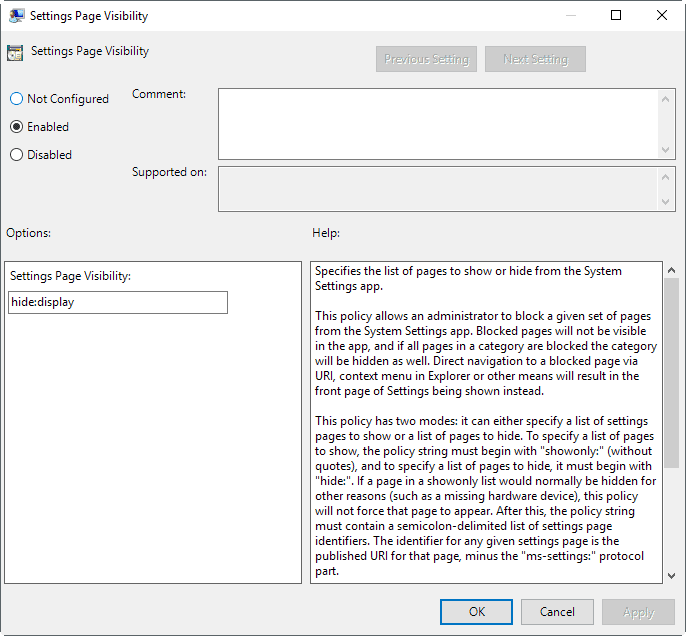
Well, since Windows 10 version 1703 (Creators Update) there a new GPO setting that does that!

If your editing policies through a Windows 10 v1703, or after updating your ADMX files on the your domain, you’ll find this new GPO setting here:

Computer Configuration > Administrative Templates > Control Panel

Here you’ll find a setting called “Settings Page Visibility”

Now, using a prefix you can choose what to do:
showonly: will keep the option visible but with no possible “interacting”
hide: will make he option to completely disappear

Now you just need merge this “prefix” with one of the “short urls” of the pages you want.

For example, if you don’t want to show Cortana page, you should use it like this:
hide:cortana

Here’s a list of some of the pages. Just keep in mind you should merge without the ms-settings: part.
For more settings it’s easier just to search on Google or Bing:

  • ms-settings:about
  • ms-settings:activation
  • ms-settings:appsfeatures
  • ms-settings:appsforwebsites
  • ms-settings:backup
  • ms-settings:batterysaver
  • ms-settings:bluetooth
  • ms-settings:colors
  • ms-settings:cortana
  • ms-settings:datausage
  • ms-settings:dateandtime
  • ms-settings:defaultapps
  • ms-settings:developers
    • ms-settings:deviceencryption
    • ms-settings:display
    • ms-settings:emailandaccounts
    • ms-settings:extras
    • ms-settings:findmydevice
    • ms-settings:lockscreen
    • ms-settings:maps
    • ms-settings:network-ethernet
    • ms-settings:network-mobilehotspot
    • ms-settings:network-proxy
    • ms-settings:network-vpn
    • ms-settings:network-directaccess
    • ms-settings:network-wifi
    • ms-settings:notifications
    • ms-settings:optionalfeatures
    • ms-settings:powersleep
    • ms-settings:printers
    • ms-settings:privacy
    • ms-settings:personalization
    • ms-settings:recovery
    • ms-settings:regionlanguage
    • ms-settings:storagesense
    • ms-settings:tabletmode
    • ms-settings:taskbar
    • ms-settings:themes
    • ms-settings:troubleshoot
    • ms-settings:typing
    • ms-settings:usb
    • ms-settings:windowsdefender
    • ms-settings:windowsinsider
    • ms-settings:windowsupdate
    • ms-settings:yourinfo