Showing posts with label edge. Show all posts

Saturday, May 15, 2021

Microsoft Edge–Uninstall from command-line

Need to uninstall Microsoft Edge using a command-line or remotely?

Here’s how:

  1. Open an elevated command-prompt
  2. Navigate to “C:\Program Files (x86)\Microsoft\Edge\Application\[version number]\Installer”
  3. Run the following command-line: setup.exe --uninstall --system-level --verbose-logging --force-uninstall

And it’s all done!

Sunday, November 17, 2019

Microsoft “Edgeium” GA expected January 15, 2020

With a new fantastic logo launching on the last beta release of Microsoft Edge “Chromium”, there’s also the announcement of the expected general availability launch date.

It seems that January 15, 2020 its the objective. The next weeks are reserved for feedback and a little few more beta releases and than a final stable release of the new Microsoft Edge browser.

Friday, July 19, 2019

New Microsoft Edge with Chromium (Edgium) is getting ready for business

With the new Microsoft Edge getting a good feedback from users and a very fast paced development, Microsoft announced today a new very important step.

Because enterprise/business means a lot to Microsoft, they’re trying to get back on track and regain some market share that they loose to Chrome on the enterprise environment. So it’s really nice to see that since today a set of new features are getting available:

  • Internet Explorer Mode
    • This is something similar to IE Enterprise Mode, but all the magic happens inside the same browser. So, instead of the user gets redirected from Edge to IE, now it opens in single browser with IE compatibility
  • Offline deployment package
    • This is fundamental for enterprise environment so, MSI and PKG are now available for download
  • Group Policies for Windows and MAC
    • Again, something fundamental for enterprises to control features and behavior. A note here, although not just yet but, MDM and Intune support is on the roadmap

So, to take a look at a full list of features and downloads follow this link:
Microsoft Edge - Enterprise

Monday, June 24, 2019

Microsoft Edge based on Chromium (Edgium) GPOs early preview

Later last week Microsoft’s Sean Lyndersay made a post at Microsoft Tech Community where it was announced the first look of new Microsoft Edge based on Chromium group policies.

Without a lot of information for now, we were told that there will be correspondent one’s for Intune also.

He also stressed that this is obviously a work in progress and there’s still much work to do.

Take a look and download the preview GPOs here:

Microsoft Tech Community - Early preview of Microsoft Edge group policies

Wednesday, May 8, 2019

Microsoft Edge’s IE Mode will give a better experience over the current Enterprise Mode

For me, one of the biggest announcements at Microsoft Build 2019 it’s Microsoft Edge’s IE Mode.
Looks like Microsoft is really committed with the new “Edgium” browser and trying to allow enterprises to stop installing 2 browsers (usually Edge/Internet Explorer and Google Chrome).

With the new Microsoft Edge, based in chromium, plus the new IE Mode Microsoft tries to eliminate the need for Google Chrome and also gives users a better experience when accessing internal websites that only work with Internet Explorer.
Instead of automatically opening an IE browser, the IE Mode allows a new instance of IE directly in a new Edge tab. This gives the users a very very nice and integrated experience.

Find everything announce for Microsoft Edge here:
Microsoft Edge – All the news from Build 2019

Monday, April 15, 2019

Microsoft Edge with Chromium preview available for download

Although there was over the Internet, some unofficial versions of Microsoft Edge with Chromium, it is now available through Microsoft’s preview programs.

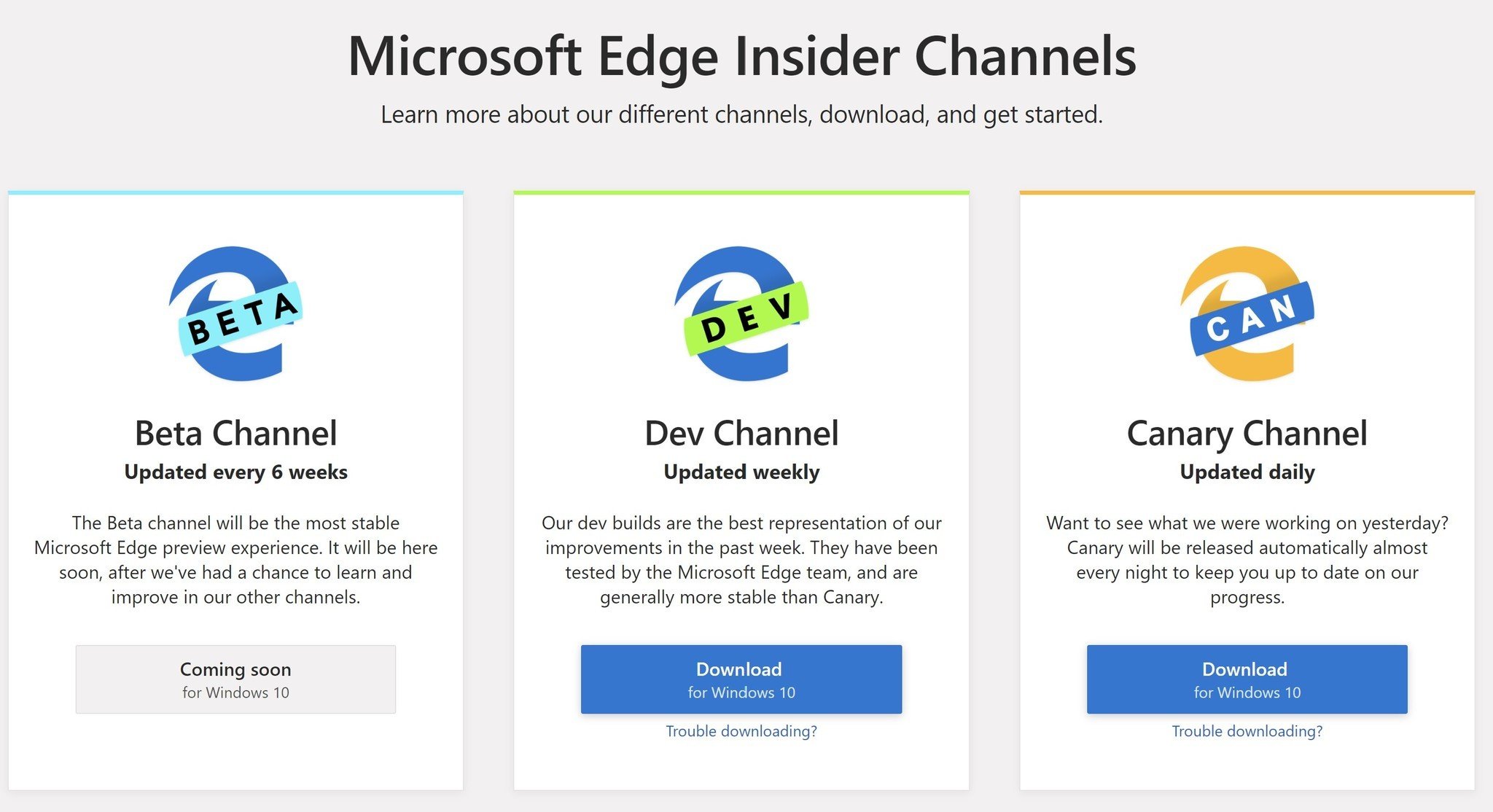
In this phase it is available in 2 preview channels:

  • Dev Channel – here you’ll have access to upcoming features that later will be available to final users.
  • Canary Channel - this branch has pre-released code that was not totally tested.
  • Beta Channel – Not yet available and presumably will be in next fall.

So go ahead and try the next Microsoft’s browser, Microsoft Edge with Chromium:
Microsoft Edge Insider Channels

Tuesday, September 25, 2018

Why YouTube works so bad with Edge (and Firefox btw…)

Although it’s easy to blame on Microsoft, maybe the reason why YouTube works so bad using Edge or Firefox isn’t so obvious like “Chrome it’s a better browser”.

In a nice article from WindowsCentral, Daniel Rubino comes with a plausible explanation including quotes from Chris Peterson (technical program manager at Mozilla) and Kyle Pflug from Microsoft.

Read the full article at:
WindowsCentral - Why YouTube is so slow in Microsoft Edge (and how to fix it)

Wednesday, June 7, 2017

Windows 10 Tips – Sync Favorites Between Edge and Internet Explorer

Untitled

Although Microsoft Edge it’s getting better and better, for the time being some enterprises still needs to use Internet Explorer 11 for compatibility reasons.

This doesn’t mean you shouldn’t start looking to the near/mid future, where Internet Explorer should be something from the past on Windows operating systems.

That said, you can start today taking care of something that it’s really important for your users.
Favorites! It’s one of the most important things for your users.
Every single time you change a user’s computer, delete a user profile, etc and you don’t have implemented a folder redirection for your favorites, you’ll get complaints about lost favorites.

This could be something you’ll get when migrating from Internet Explorer to Edge, so…what about so sync favorites between Edge and Internet Explorer…automatically?

So, following this steps, will allow to configure the automatic favorites sync between IE and Edge.

Group Policy Configuration

  1. Open Group Policy Management console

  2. Navigate to Computer Configuration > Administrative Templates > Windows Components > Microsoft Edge

  3. On the right pane, double-click “Keep favorites in sync between Internet Explorer and Microsoft Edge

  4. Select Enabled

  5. Click OK


And your done!

Tuesday, August 9, 2016

Microsoft Edge - Enabling TCP Fast Open (TFO)


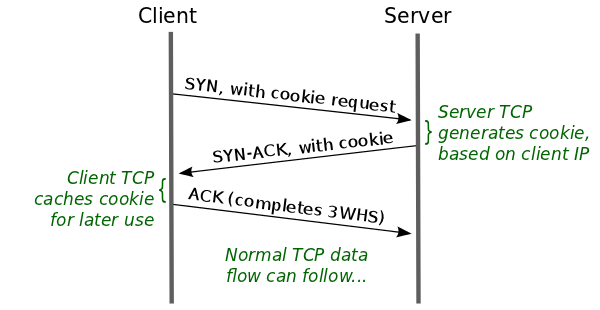
TCP Fast Open (TFO) is a new extension meant to replace the old T/TCP system.
According to Google, this new system can improve page load time by 10% to 40%. This can be achieve by reducing traffic back and forth between the client and the server.

In a very resumed way, the less latency you can have between two far away systems the faster the load times are.

Microsoft also write a detailed blog about this back in June:
Building a faster and more secure web with TCP Fast Open, TLS False Start, and TLS 1.3 Read more at https://blogs.windows.com/msedgedev/2016/06/15/building-a-faster-and-more-secure-web-with-tcp-fast-open-tls-false-start-and-tls-1-3/#Te0IgPhiPFmv0Rd9.99

Microsoft's main objective for Edge it's to end the gap that it had last years on the browsers world, and the strategy it's all about do the good things other competitor do and also stand out with nice new features.

So, TFO it's now available on Edge (you'll need Windows 10 Anniversary Update).

To enable this feature, follow this steps:
  1. Open Microsoft Edge
  2. In the address bar type
  3. Scroll down to Networking
  4. Check Enable TCP Fast Open
  5. Restart Microsoft Edge (just need close and open again)

Be aware this feature it's still experimental so there could be some issues.
If you experiencie any problems, just repeat the above process and uncheck the Enable TCP Fast Open option.

Wednesday, October 7, 2015

F5 Big-IP VPN Client on Windows 10 (Solved)

First things first.
This article describes a workaround for Windows 10 users but, F5 has available a supported solution through an update for BIG-IP APM.
The update and F5 article (SOL16626) can be found here (https://support.f5.com/kb/en-us/solutions/public/16000/600/sol16626.html) and basically you'll need to upgrade at least to version 11.5.3 or the latest version 11.6.0.

Now, for those that cannot update BIG-IP APM just yet, follow the steps below:

Installing F5 VPN Adapter Driver

  • First, you'll need to download the latest "F5Network VPN Adapter Drivers" and extract files from urxvpn.cab.
  • Now, open Device Manager and you'll notice that the F5 VPN Adapter has an yellow exclamation point.
  • Right-click the device, select "Browse my computer for driver software" and then select "Let me pick from a list of device drivers on my computer"
  • On the next window select "Network Adapter" and then click on "Have Disk..,"
  • Now point to the uncompressed "urxvpn.inf" file and select the driver.
Here you're done and you'll notice that the F5 VPN Adapter it's no longe with the exclamation point.

Opening F5 corporate website

Now that you're drivers are installed, there's another issue with F5. When you try to open your F5 corporate website on different browsers, you'll the the following error message:

To bypass this message, follow this steps:

  • Navigate to "C:\Program Files\Internet Explorer"
  • Now, run as administrator "iexplore.exe"
  • Before opening any website, open Developer Tools (Tools -> F12 Developer Tools) or simple press F12
  • Now, change the following settings:
    • Document mode: 9
    • User agent string: Internet Explorer 9
  • Open your F5 corporate website and...you're done.

Hope this helps a lot of people that like me, had a lot of issues because centrally updating F5 is not an option this time.