
SOFTWARE\Microsoft\Windows\CurrentVersion\ActionCenter\Quick Actions\UnpinnedByDefault
SystemSettings_Connections_Add_VPN

Sunday, July 8, 2018
Removing Tiles from Action Center for All Users


Avoiding the “Download language type features” Annoying Popup in Your Golden Image
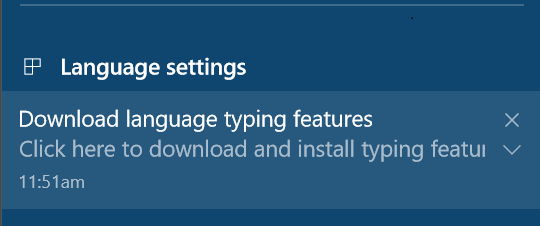
You’ve created you’re perfect golden image, everything installed correctly, all the Microsoft hotfixes are installed, no missing drivers and…after a while you get a popup stating that you need to “download language typing features”…
Just to get things a little bit more frustrating, you’re machines are behind a proxy and cannot download this additional features.
This is a common scenario on enterprises, specially and foremost on enterprises outside U.S.
To strip out Windows from being a large ISO/WIM file, Microsoft decided to add some additional features with an “on-demand” installation. This means that some features that can be activated in the O.S. may need to download they’re source files from the Internet.
This happens if you want to activate .NET Framework 3.5 for example.
Now, to avoid this from happening follow the steps bellow.
Keep in mind that this is an example for enterprises with Microsoft VLS. If not an enterprise, the main difference is that you should find the direct download path on the CBS.log file also.
- First thing you need to know, is exactly which files Windows needs to download. For this one you need to take a look at this file:
C:\Windows\Logs\CBS\CBS.log - Now search for something like “Microsoft-Windows-LanguageFeatures-“. If you look closely to this log file you’ll notice that this file could not be downloaded or some kind of error.
Usually there are 2 files you need. the “Basic Language” and “OCR” features - Now that you know what you need, go ahead to the Microsoft Volume Licensing Service Center website and download the following ISO:

- When you mount the ISO, you’ll find the files you need as a *.cab file.
- Copy the files you need and now you just need to had them to your golden image.
- To install this cab files you just need to run this DISM commands, like in this example:
DISM /Online /Add-Package /PackagePath:Microsoft-Windows-LanguageFeatures-Basic-pt-pt-Package.cab
And..you’re done!
Thursday, July 5, 2018
Tips & Tricks – Easy Logging Reading with CMTrace
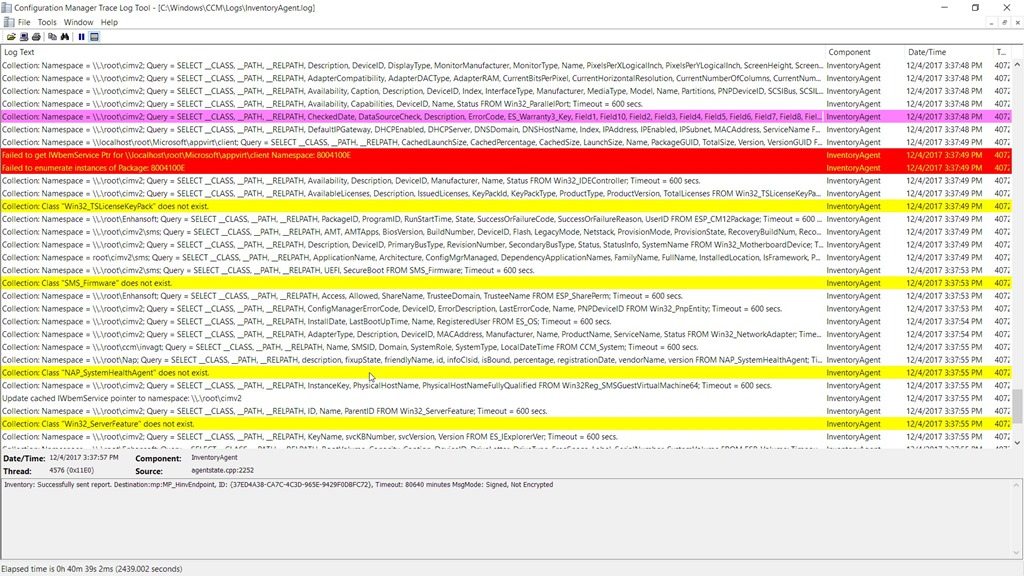
Have you ever opened a *.log file with notepad and wished to have something else that could format everything for you, and that could also automatically show you error lines or warnings?
Than CMTrace it’s the perfect tool for you.
Bundled with SCCM 2012 R2 Toolkit (and also in previous version I believe), you’ll find CMTrace tool that does the job for you.
Download it here:
TechNet - SCCM 2012 R2 Toolkit
MDT – Adding Windows Store for Business Apps in MDT
Here’s a very nice, although old article, from Michael Niehaus about adding Windows Store for Business Apps directly in MDT.
This is particularly useful if your company is already creating apps and you want them to be loaded directly in your golden image, instead of downloading from Store afterwards.
TechNet - Using the Windows Store for Business with MDT 2013
HP SoftPaq Unpack Switches

Here’s a quick tip for unpacking HP SoftPaq drivers:
* "SPxxxxx.exe is the SoftPaq filename to unpack
* "-pdf" is a runtime switch that overrides the build parameters
* "-f" is a runtime switch that overrides the default path set at build time
* "-s" instructs the package to unpack in silent mode, skipping the Welcome, License, and Directory screens
* "-e" instructs the package to extract only, that is, do not run the component installation program.
One example:
SP4242423.exe -pdf -f -e C:\Temp\drivers\
Wednesday, June 6, 2018
Windows 10 – Updating Trusted Root Certificates List

Since Windows 8.1, Microsoft changed the way Trusted Root Certificates List (TRCL) get’s updated.
Now, it uses the Windows Update services to do this, and this can be an issue for some enterprises with machines that don’t have Internet access or if you disabled Windows Update in your environment.
Also, if you want to look at this in a different way, it allows you as a SysAdmin to completely control which certificates are allowed or not in your environment.
So, here’s a quick procedure on how you can update that the TRCL without Windows Update enabled:
- Downloading Updated TRCL
- On a machine with Internet access run the following command:
certutil –generateSSTFromWU roots.sst - Then grab that file and create a package with your endpoint management software (ex.: SCCM)
- Installing the Updated TRCL
- Now that you have generated your SST file, you just need to import the certificates to your machines.
- For this one, the easiest way is to create a powershell script with the following line:
$sst_file = (Get-ChildItem –Path C:\roots.sst)
$sst_file | Import-Certificate –CertStoreLocation Cert:\LocalMachine\Root
And that’s it!
Monday, June 4, 2018
Understanding the Intelligent Edge
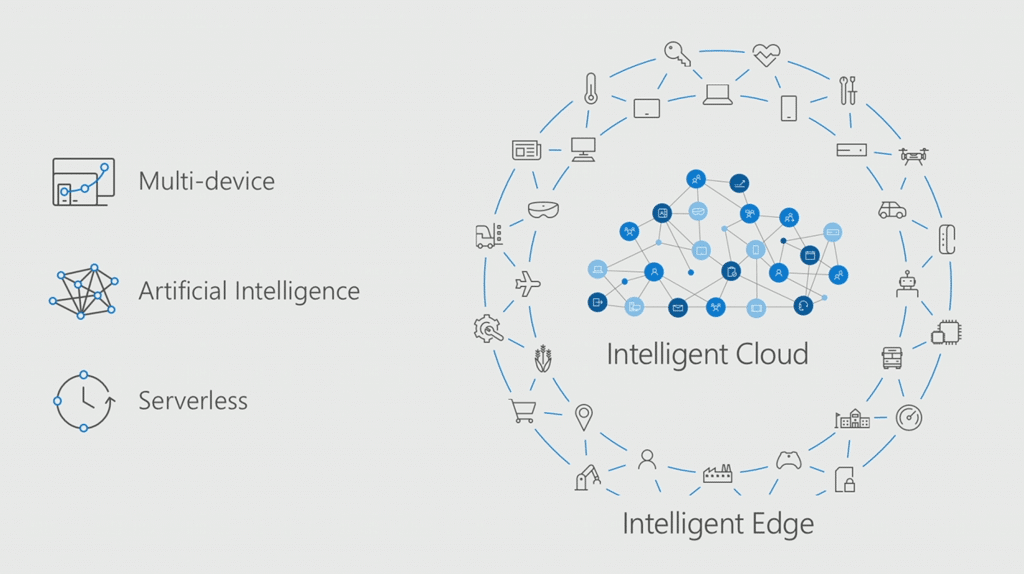
Nowadays,with everything evolving at the speed of light, there’s a lot of initials, acronyms and concepts to catch up.
One of the most recent ones is the Intelligent Edge.
In a very very very resumed and simplified way, Intelligent Edge it’s all about the devices, or IoT devices if you like, that connect to the cloud, and the concept itself it’s to bring “intelligence” to this devices so they don’t need to do everything in the cloud and also the ability to make this devices talk to each other without the need of using the Cloud to do it.
Microsoft just launched recently a video from the series “Explanimators” about this:
Subscribe to:
Posts (Atom)