Wednesday, January 16, 2019

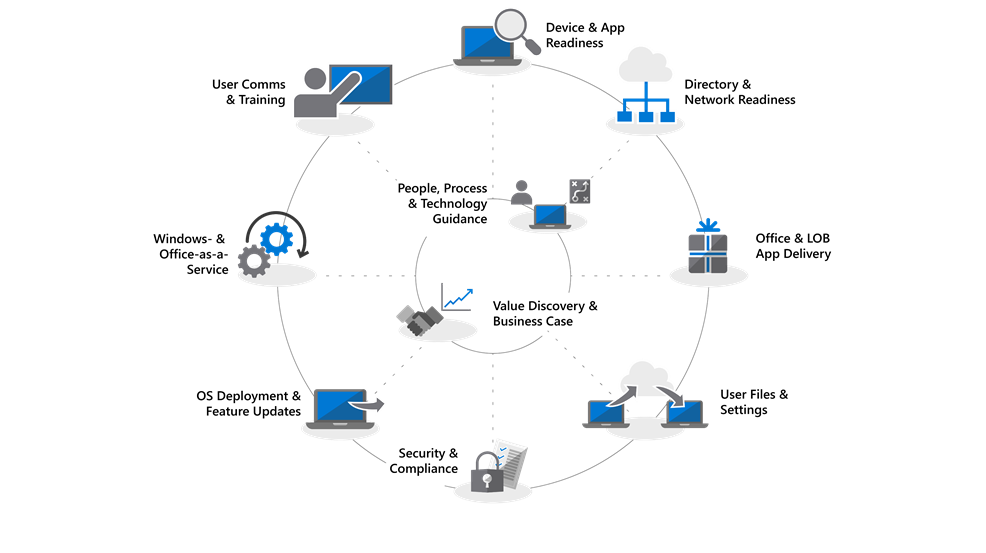
Microsoft Modern Desktop Deployment Center

Preparing to deploy Microsoft Windows 10 and/or Office 365 ProPlus?

This will be the future (well, somehow the present) of Microsoft on the enterprise, specially with large-scale deployment.

So, embrace the modern desktop deployment with Microsoft Desktop Deployment Center.

In this Microsoft’s website you’ll find guidance with videos, planning, step-by-step guides and a lot more.

Find all the info here:
Modern Desktop Deployment Center

Microsoft 365 (M365) Documentation and Resources

After years of basically using the same tools, architectures and methods, Microsoft decide that the technology, and its flagship products (Windows and Office) were mature enough in a way that allows the change to a different approach to enterprise management.

There’s also the new world paradigm about security and the all-connected things that represents a new challenge to every IT admin.

This is why Microsoft 365 (M365) was created.
A complete end-to-end solution that and a new world of learning for the IT departments.
A new way to manage things, a set of new skills to learn, a new approach that when well implemented can be a dream for every IT department.

This is not an easy journey, for sure, and I’m also taking the first steps on it but from my perspective, I see a lot of things that will finally allow me to get a real in depth knowledge about my infrastructure.

Because the path to M365 can be an hard one, here’s a lot of resources made available by Microsoft in one single place:
Microsoft 365 Enterprise documentation and resources


Saturday, January 12, 2019

Troubleshooting GPOs processing with Event Viewer

Here’s a nice article, from Microsoft’s PFE Brandon Wilson, about how to troubleshoot group policy processing, mainly to understand if it’s slowing down the boot and logon process on a Windows machine.

Read the full article here:
TechNet Blogs - Ask PFE Platforms - Is Group Policy Slowing Me Down?

Monday, January 7, 2019

Powershell – Getting device driver version

Here’s a quick tip to get a list of device driver version installed:

  • Open Powershell (as Administrator)
  • Execute the following command:
    Get-WmiObject Win32_PnPSignedDriver | select DeviceName, Manufacturer, DriverVersion

After executing the command, you’lll get something like this, where the third column displays the driver version:
Untitled

Sunday, December 30, 2018

How to View Power Usage for Apps on Task Manager

In the plethora of new features and improvements in Windows 10 October 20180 Update (aka v1809) here’s one that comes with Task Manager.
You can now view the power usage for each app and also it’s trend.

To do so, follow this steps:

  1. Open Task Manager (right-click taskbar or ctrl+shift+esc)
  2. Click the Processes tab
  3. Right-click any available column header and select the Power usage option and, if you want, select the Power Usage Trend also.

How to Install Intel Graphics Windows DCH Drivers

With Windows 10 October 2018 Update (aka v1809), introduced a new way for device drivers to work with the Universal Windows Drivers architecture.

One of the major differences with the new architecture is that streamlines the work for drivers developers which can create a single driver package that can run across different device types, for example, the sam package can run in desktops, laptops or embedded systems.

In this transition, Intel is already making available new drivers called Windows DCH Drivers or Windows Modern Drivers and they’re meant to take use of the Universal Windows Platform (UWP) and replace the old/legacy drivers.
This is particularly important since the future Windows Core OS will not support Win32 applications natively (they will run in some kind of virtual sandbox).

So, if you want to try the new drivers, follow this steps:

  1. Check if your Intel Graphics card is supported:
    • Open Device Manager
    • Expand Display Adapters
    • Check if you have one of the following supported adapters
      • UHD Graphics 600/605
      • UHD Graphics 620/630
      • HD Graphics 500/505
      • HD Graphics 510/515/520/530
      • HD Graphics 610/615
      • HD Graphics 620/630
      • Iris Graphics 540
      • Iris Pro Graphics 580
      • Iris Plus Graphics 640/650
      • Iris Plus Graphics 655

  2. Installing the new Intel Graphics DCH Drivers:
    • Using Intel Driver and Support Assistant (iDSA) tool:
      • Go to Intel Support website
      • Click the Intel Driver and Support Assistant Installer
      • Install the tool and restart your computer
      • Next, you’ll get the iDSA tool icon on the systray
      • Right-click and select “Che For New Drivers”
      • The tool will scan and install the new DCH drivers
    • Using the Intel Graphics driver installer:
      • Go to Intel Support website
      • Under “Available Downloads”, click the “dch_win64_xx.xx.xxx.xxxx.exe” button
      • After download completes, just execute the *.exe file and follow the steps for installing the DCH driver.


And you’re done, and the new DCH drivers are installed.
If you wan to make sure, just go to Device Manager again and verify that your display adapter driver version is higher than 25.20.100.6444.

Thursday, December 6, 2018

Access 2016 – Could not find installable ISAM [Solved]

clip_image001

Here’s a quick tip for everyone that uses Microsoft Access with dBase queries and it’s getting the error “Could not find installable ISAM” after upgrading to Access 2016.

To solve this you need to install 2 hotfixes for Access 2016:
KB4018338 (Microsoft Catalog)
KB4011143 (Microsoft Catalog)

After installing both updates, restart the machine and you’re done!